


How to Open DjVu Files on Mac: 5 Best Readers (2026 Guide)




5 best DjVu readers for Mac that are fast, secure, and fully optimized to run smoothly without crashing.
Last tested: Jun 2026 - All apps verified on Mac mini (Apple M1, macOS Tahoe 26.4.1) and iMac (Retina 4K, macOS Sequoia 15)
Double-clicked a .djvu file on your Mac only to see an error?
That's completely normal - macOS doesn't support DjVu natively, and most people have never heard of the format until they need it.
DjVu is a compressed document format commonly used for scanned books, academic papers, textbook, and archival content. You need a dedicated viewer to open it on a Mac.
To save you the trial and error, we tested the leading options on the latest macOS configurations—including free tools, App Store choices, and open-source viewers. Here are the 5 best DjVu readers for Mac that are fast, secure, and fully optimized to run smoothly without crashing.
How We Tested:
Every app in this article was personally installed and tested on two Macs: a Mac mini (Apple M1, 8GB, macOS Tahoe 26.4.1) and an iMac Retina 4K (8GB, macOS Sequoia 15).
We tested with multiple DjVu file types: a lightweight text based sample file(size904KB, 84pages) to measure quick-launch behavior, a medium sized scanned image-only DjVu files(size10.7MB, 68pages), non-English documents(Arabic, size33.4MB, 706pages), and a large, multi-layer scanned textbook containing dense color backgrounds and embedded OCR text layers (size271.3MB, 2779pages). We also deliberately threw "corrupted/crash" files at each engine to check error handling.
Each app was evaluated for load speed, scrolling smoothness, display quality, text selection, OCR text handling, PDF export quality, Apple Silicon compatibility, retina display clarity, and real-world usability frustrations.
Quick Answer: Best DjVu Readers for Mac
| If You Need… | Best Choice |
| Best lightweight DjVu reader | Enolsoft DjVu Viewer |
| Best for annotations | Okular |
| Best free open-source option | DjVuLibre |
| Best online DjVu viewer | DjVu.js Viewer (online — small files only) |
| Best for multi-format handling | Calibre |
The Best DjVu Readers for Mac Reviewed
1. Enolsoft DJVU Viewer - Lightweight DjVu Viewer with powerful search capability
Price: Free trial available; full version paid
Apple Silicon (M1/M2/M3): ✅ Native
Drag and Drop: ✅ Yes
Best for: Anyone who works with DjVu files regularly and needs a lightweight option
If you need an lightweight DjVu reader that provides an unified reading experience for both scanned and OCR-enabled DjVu files, Enolsoft DjVu viewer is what we recommend.
It’s interface feels genuinely Mac-native. You get two viewing modes, tabbed windows for multiple files, and full-screen support.
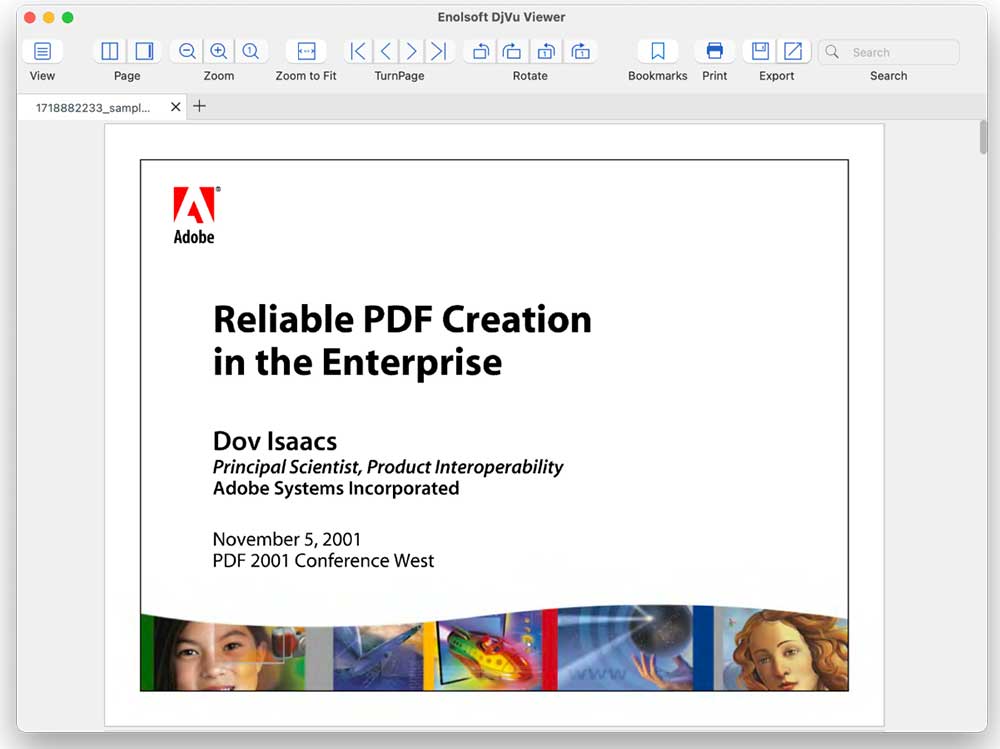
On speed: Both small and very large DjVu files loads quickly, usually within a few seconds even large scanned archives. Unlike several other viewers, scrolling remained responsive during long reading sessions.
On display quality: Clear scanned files displayed sharply. Low-quality scanned files also rendered relatively clearly - better than we expected. On the iMac Retina 4K, image sharpness was noticeably crisp.
When you execute a search, the app automatically generates a master list of all matching results directly within the left-hand sidebar. Unlike every other reader we tested, you can click on any search result to instantly jump and lock onto that exact page position.
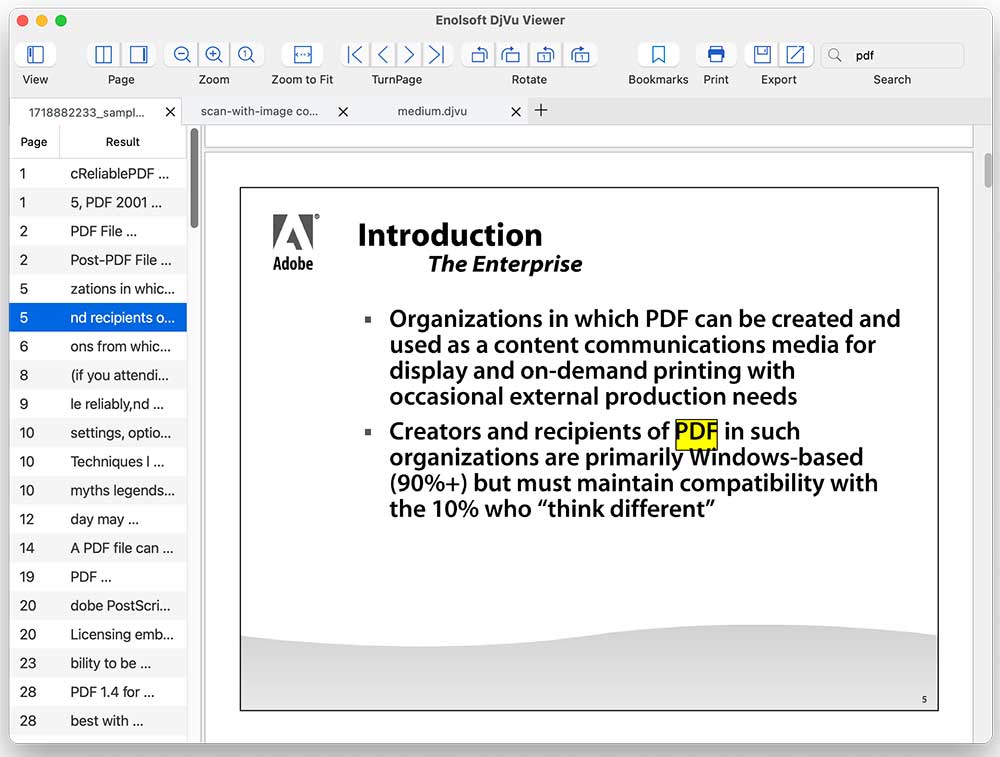
One of the biggest advantages is that OCR-enabled DjVu files behave properly here:
- selectable text can be copied,
- searchable content works,
- and exported PDFs preserve selectable text instead of flattening everything into images.
PROS
- Drag-and-drop importing
- Fastest large file loading in our tests
- Tabbed windows - open multiple DjVu files simultaneously
- Direct text selection works smoothly - if an OCR layer exists on a scanned page, you can highlight and copy it natively.
- The only tested reader that offers a clickable search results index panel for rapid structural navigation.
- Clean PDF export - preserves text for non-scanned documents
- OCR-enabled documents preserved text correctly after PDF export
- Universal package - runs natively on Apple Silicon
- Retina display support - sharp rendering on iMac 4K
- No major crashes occurred during testing
CONS
- Paid app
- Does not record your last reading position upon closing.
Our Verdict: For regular DjVu users on Mac, Enolsoft DjVu viewer is a solid option. The PDF export quality alone separates it from the free options — especially if you share converted files with others who need to copy or search text. Start with the free trial to confirm it fits your workflow.
Skip this if: You only need to open a DjVu file once and have no need for conversion or multi-format support.
2. Okular (by KDE) - Best DjVu reader and annotator
Price: Free, open-source
Apple Silicon (M1/M2/M3): ✅ Dedicated ARM64 package
Drag and Drop: ❌
Best for: Users who annotate documents heavily or work with research materials.
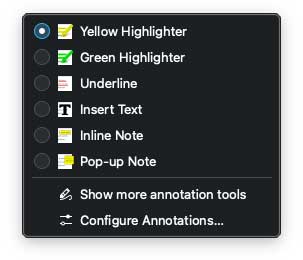
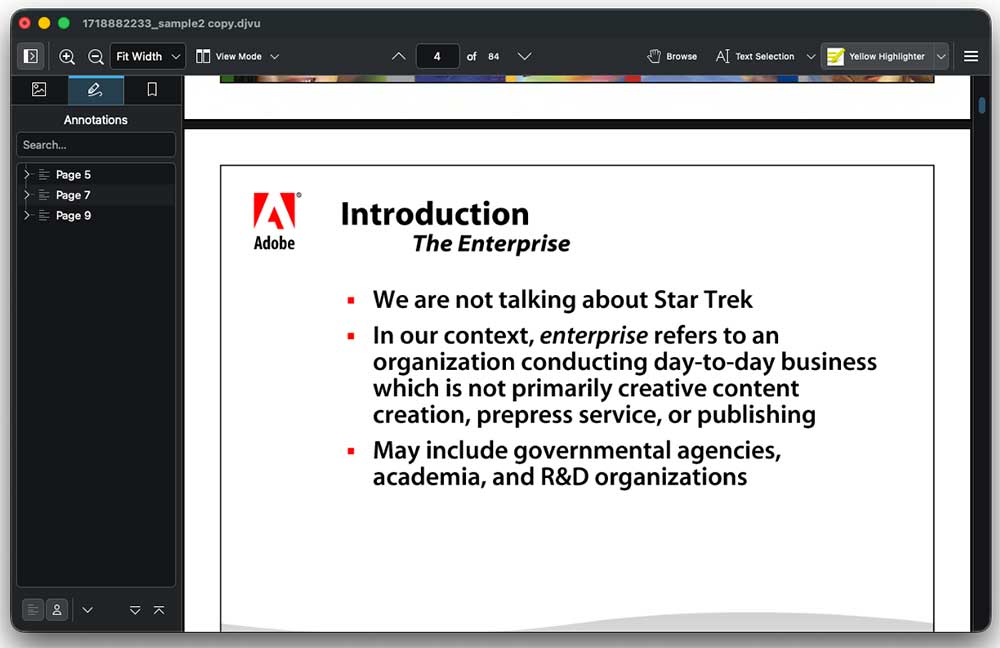
Okular comes from the KDE project and is the standard document viewer on Linux. In our test, It’s annotation tools are the best among all available options.
On speed: Small DjVu files opened quickly, but large scanned files performed much worse. One larger test archive took nearly 2 minutes to become usable, and navigation occasionally felt sluggish afterward.
Multi-file limitation: Okular does not support batch opening. Only one file can be open at a time.
Display quality on files that did load was clear and accurate.
Text & Search Limits: Plain text can be searched and highlighted, but the tool cannot extract text from raw scanned images lacking an integrated OCR layer. When you copy text, it generally maintains formatting, but occasionally bugs out, pasting sentences vertically with "one letter per line." Searching is sluggish, forcing you to click page-by-page to jump to the next highlighted term rather than offering a master list of matching results.
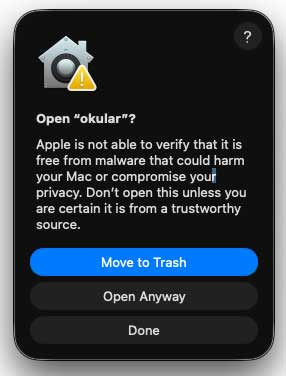
When you open Okular for the first time, macOS immediately blocks it:
"Okular" Not Opened - Apple could not verify "Okular" is free of malware that may harm your Mac or compromise your privacy.
You must go to System Settings → Privacy & Security and manually click Open Anyway. This is a one-time step, but it will surprise anyone who isn't expecting it.
PROS
- Free DjVu reader for Mac
- Features a robust sidebar navigation matrix showing thumbnails, annotations, bookmarks, and content tables concurrently.
- Best annotation tools among free apps (highlight, underline, notes)
- ARM64 native package for Apple Silicon
- Clear display quality on loaded files
- Right-click text selection: Speak, Search in Google/Yahoo/Bing
CONS
- Large scanned files caused obvious delays
- Only one file open at a time - no batch support
- macOS security warning on first launch
- Search functionality became frustrating for large documents because results require manual page-by-page navigation
- Scanned files cannot have text selected or searched
Our Verdict: Okular is genuinely useful for annotation, and the ARM64 package is a plus. But the large-file performance is bad enough that we can't recommend it as a primary reader if your files are substantial. Use it specifically for annotating small-to-medium DjVu documents where you need highlighting and notes.
Skip this if: Your DjVu files are large, or you need to work with multiple files at once.
3. DjVuLibre (DjView4) - Free and open source DjVu Reader for Mac
Price: Free, open-source
Apple Silicon (M1/M2/M3): ✅ Universal package - but with a notable display issue (see below)
Drag and Drop: ✅ Yes
Best for: Users who want a free, reliable DjVu reader and don't mind some rough edges.
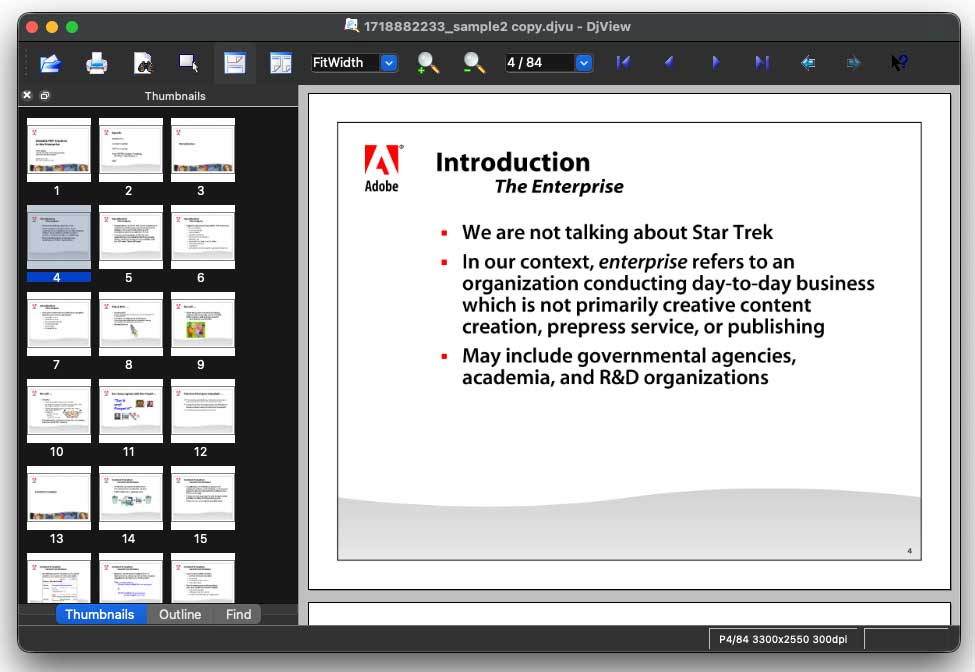
DjVuLibre is the reference implementation of the DjVu format - built by the same team that created it. That history shows in the rendering: in our tests, both small and large files loaded quickly with almost no waiting time, which beat several paid apps.
However, our M1 Mac mini testing revealed something worth flagging before you install: interface icons appear blurry on M1 Macs, particularly the icons toward the end of the toolbar. They're difficult to read clearly. On the iMac Retina 4K running Sequoia, this issue was not that obvious.
Text quality on M1 was also slightly worse - scanned text appeared somewhat blurry. On the Retina 4K iMac, scanned documents displayed more cleanly. If you're on an Apple Silicon Mac and display quality matters to you, test it before committing.
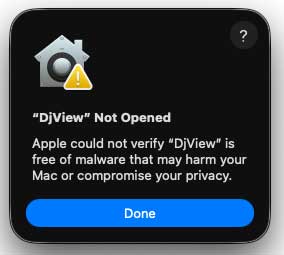
First launch warning: Like Okular, DjVuLibre shows the macOS security warning on first open. Go to System Settings → Privacy & Security → Open Anyway.
One workflow quirk that frustrated us: On M1 Macs, you must double-click a page in the left thumbnail sidebar to navigate to it. Single-clicking does nothing - which is counterintuitive and not documented anywhere. We spent time thinking the sidebar was broken.
Another limitation: Opening a second file while one is already open replaces the current file rather than opening in a new tab or window. There's no multi-file support.
Text selection also requires an extra step - you can't just click and drag. You must first activate the box selection tool, then select. For scanned documents, text still can't be copied, which is expected.
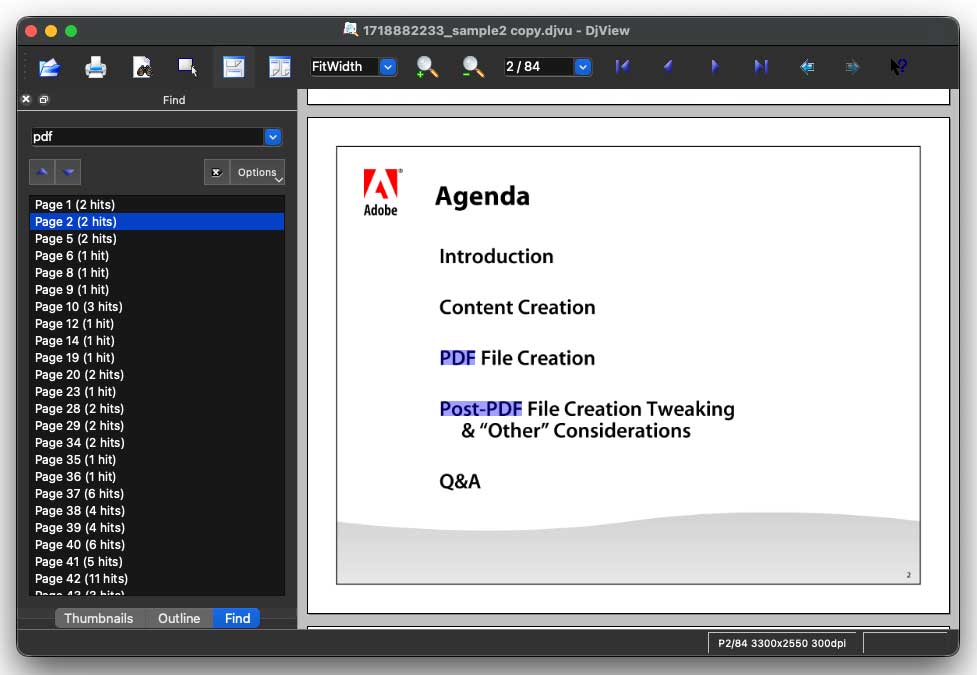
Search Limitations: While DjVuLibre features a "Find" pane that compile search parameters into a literal text list, the results are static and unclickable. Clicking on a specific row in the search index does not route you to that page. You are still forced to hit the "Next" arrow button repeatedly to manually discover the highlighted text strings.
PROS
- Completely free and open-source
- Fast loading - even large files open quickly
- Exports to multiple image formats
- Left panel with thumbnails, outline, and search
- Actively maintained
CONS
- Blurry toolbar icons on M1 Macs
- Slightly degraded text rendering on M1
- No multi-file support - opening a second file replaces the first
- Double-click required to navigate thumbnails on M1 (not single-click)
- macOS security warning on first launch
- Does not remember reading position after closing
Our Verdict: For a free app, DjVuLibre is genuinely capable — fast loading, solid format support, and active maintenance. The M1 display issues are a real flaw, not a minor quirk. If you're on Apple Silicon, test it on your own files first. If you're on an Intel Mac or the Retina iMac, the experience is considerably cleaner.
Skip this if: You're on an M1/M2/M3 Mac and need sharp interface rendering and text quality.
4. DjVu.js Viewer - Online Option (Small Files Only)
Price: Free
Install Required: No - runs in browser
Best for: Opening small DjVu files once, with no software installation.
DjVu.js is a browser-based DjVu viewer. It works entirely in the browser, making it convenient for quick access. For small file and one-time use - it works. However, for anything else, our testing found serious limitations.
Small files: Load reasonably fast, but scrolling to the next page takes 3-6 seconds with noticeable lag between pages. This isn't a fast experience.
Medium-sized files: Load reasonably fast (one page at a time), but page-to-page scrolling still lags 3-6 seconds.
Large files: In our testing, large files completely froze the browser. After waiting several minutes, there was still no response. After more than 10 minutes, only the first page loaded — and even then, toolbar buttons responded very slowly. Do not attempt large files in DjVu.js.
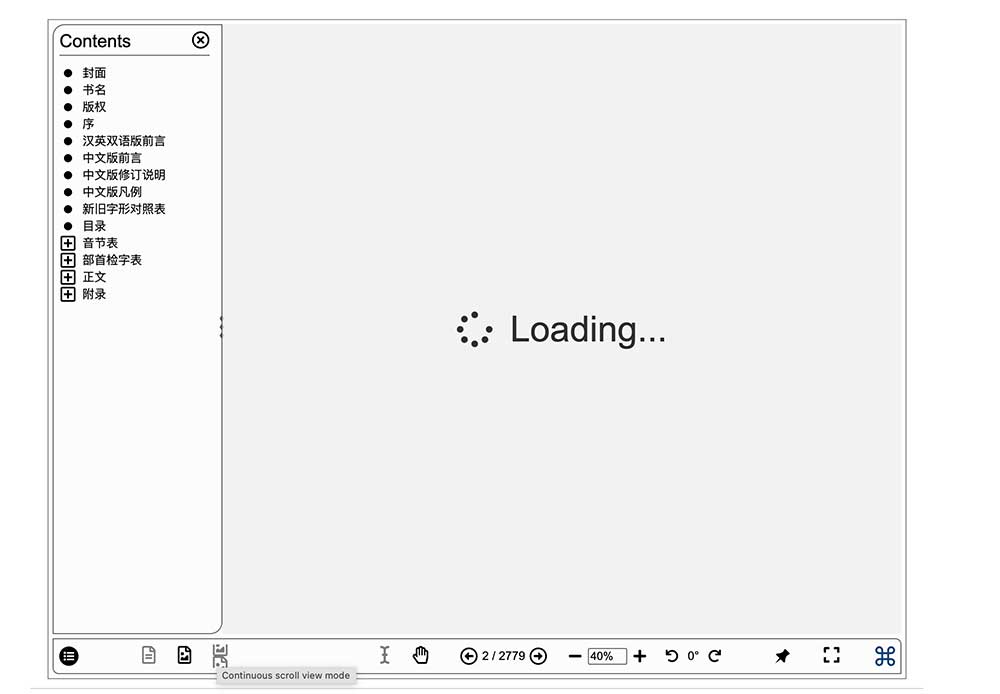
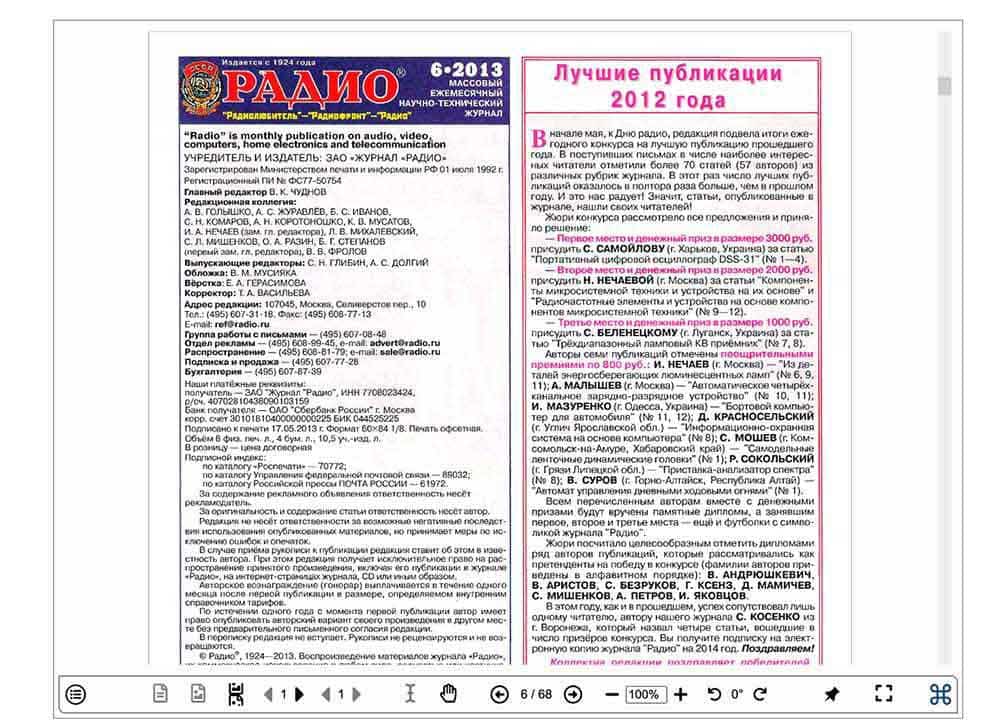
Display quality varies significantly. Non-scanned files and clear scanned documents display acceptably. Medium-quality scanned files, however, become extremely blurry — noticeably worse than any desktop app we tested. Interestingly, text clarity depended heavily on the viewing mode: Continuous Scroll mode looked noticeably sharper than Single Page mode.
One quirk that caught us off guard: The drag-and-drop zone is very precise. The file must be dragged into the designated box exactly. If you drag it anywhere else on the page, your browser downloads the file instead of opening it. And once a file is open, you cannot drag another file in — the browser downloads it instead of replacing the current file. You must refresh the page to start over.
Text selection requires switching to Text Cursor mode first, which is unintuitive. While selecting, the cursor flashes continuously — uncomfortable for extended use. Non-English characters in Text view mode appeared as garbled text in our tests.
Printing: We tested the print function on a small file. After 6 minutes of waiting, it still had not responded. Printing through DjVu.js is not reliably functional.
PROS
- No installation required
- Free
- Works in any browser on any Mac
- Drag-and-drop support
- Dark mode color theme available
CONS
- Large files freeze the browser entirely
- 3–6 second lag between every page turn, even on small files
- Medium-quality scanned files display extremely blurry
- Printing is non-functional in practice
- Text extraction formatting is messy
- Table of contents failed showing on all test files
- Drag-and-drop zone is unforgiving — easy to accidentally download the file
- Non-English text appears garbled
Our Verdict: DjVu.js is fine for a small, clean DjVu file when you have no other option. It is not reliable enough for regular use, large files, or scanned documents of anything less than excellent quality. If you find yourself opening DjVu files more than once, install a desktop app instead.
Skip this if: Your file is large, scanned at medium quality, or you need to print.
5. Calibre — Best for DjVu to PDF, ePub, MOBI, DOCX Conversion (But Not Reading)
Price: Free, open-source
Apple Silicon (M1/M2/M3): ✅ Universal package
Drag and Drop: ✅ Yes
Best for: Users who want to convert non-scanned DjVu files to PDF, ePub, MOBI, DOCX, or other ebook formats.
Calibre technically supports DjVu importing and conversion, but it is primarily an ebook library manager, not a DjVu reader — and that distinction matters enormously for what it can and cannot do.
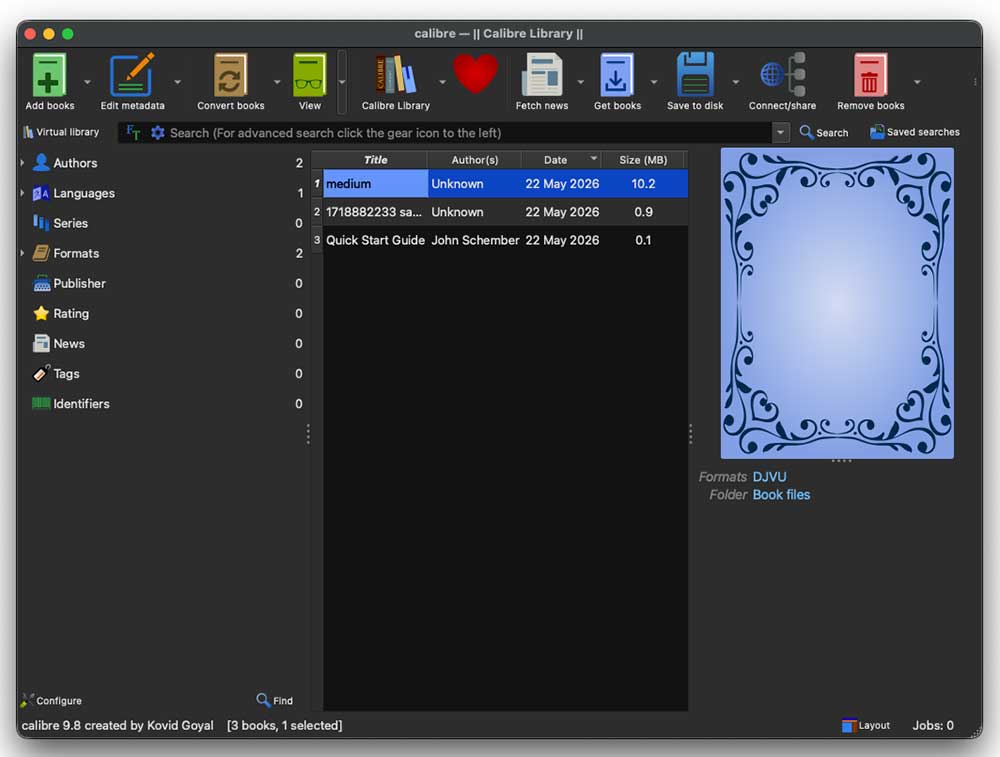
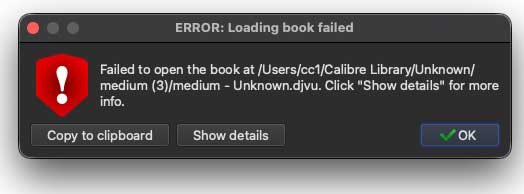
The critical limitation: Calibre cannot open scanned DjVu documents at all. If your DjVu file is a scanned book or document (which most DjVu files are), Calibre will fail silently or display nothing useful.
For non-scanned DjVu files, Calibre opens them — but not in the way you'd expect. Files cannot be previewed directly after import. You must go to View → View with Calibre E-book viewer. When you do, the display is pure text only — all images disappear, and page formatting is lost.
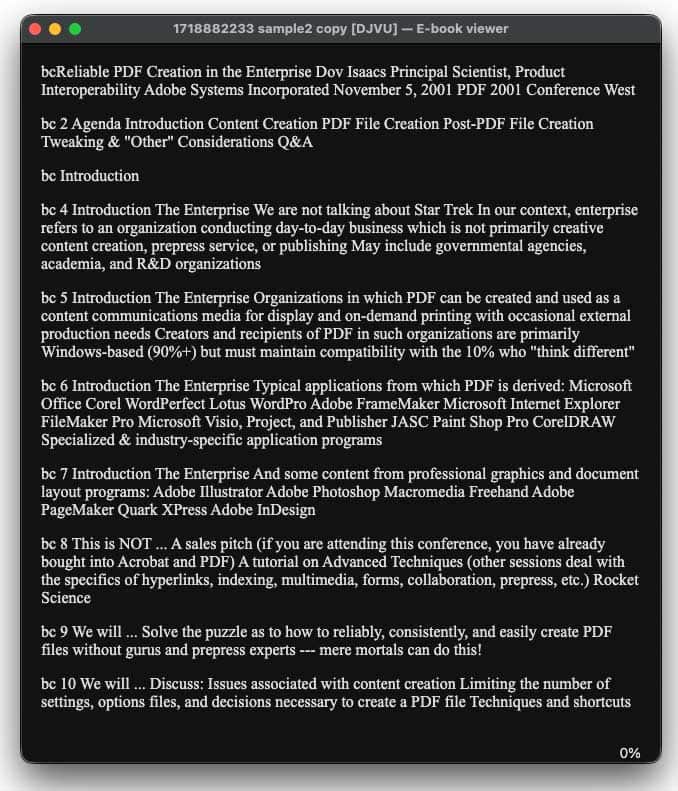
Where Calibre genuinely stands apart is its conversion output options. No other app in this list can convert DjVu to EPUB, MOBI, AZW3, or DOCX. If you have a non-scanned DjVu text document and need it as an ebook or Word file, Calibre is the only tool here that does it.
However: converted PDFs from Calibre contain only text without images, and formatting breaks significantly. For PDF output, Enolsoft DjVu Viewer produce far cleaner results.
PROS
- Free and open-source
- Drag-and-drop importing
- Converts to the widest range of formats: EPUB, MOBI, AZW3, DOCX, PDF, TXT, and more
- Universal package — native on Apple Silicon
- The only app here that outputs to ebook formats
CONS
- Poor DjVu rendering
- Cannot open scanned DjVu files at all — rules out most DjVu use cases
- No direct file preview — must use separate viewer step
- Images disappear in displayed content
- PDF conversion output loses images and breaks formatting
- Not a reader in the traditional sense — it's a conversion and library tool
Our Verdict: Calibre is not a DjVu reader — it's a converter. If you have non-scanned DjVu text and need it as an ebook or DOCX file, it's the only tool here for that job. For anything involving scanned documents, images, or clean PDF output, use something else.
Skip this if: Your DjVu files are scanned documents. Calibre simply won't open them.
Related Guides
- How to Open DjVu Files on Windows and Mac - step-by-step for beginners
- Best PST Viewers for Mac - if you need a broader document reader
- How to Open DXF Files on Mac - another uncommon format explained
Final Recommendation
For most people: Enolsoft DjVu Viewer gives the most reliable, Mac-native experience - fast loading, clean PDF export with powerful searching capability, and multi-file tab support. The free trial is enough to verify it fits your needs.
For free-only users: DjVuLibre handles large files fast and is actively maintained. Just be aware of the M1 display quirks and the single-file limitation.
For power users who annotate: Okular have multiple annotation tools that nothing else here offers.
For format conversion to ebook formats: Calibre is the only option - but only works with non-scanned DjVu files.
For one-time, small-file viewing with no install: DjVu.js works, but keep your expectations low.

Bryan is the Chief Writer at Enolsoft for 15 years. He doesn’t just document software, he is more like a power user that bridges the gap between complex file management systems and the real people who use them, showing users the easiest way to turn digital chaos into streamlined efficiency.
Comments (0)
Leave a Reply