


How to Open a DjVu File: The day I realized PDFs aren’t the only thing people use




Learn how to open DjVu files on Windows, Mac or mobile devices using free DjVu readers, online viewers, and PDF converters.
By the time a client emailed me a .djvu file, I thought I had seen every weird document format on earth.
Double click it on Windows it ask me to choose an app to open it, tried Preview on my Mac. Nope, it says “There is no application set to open the document.”
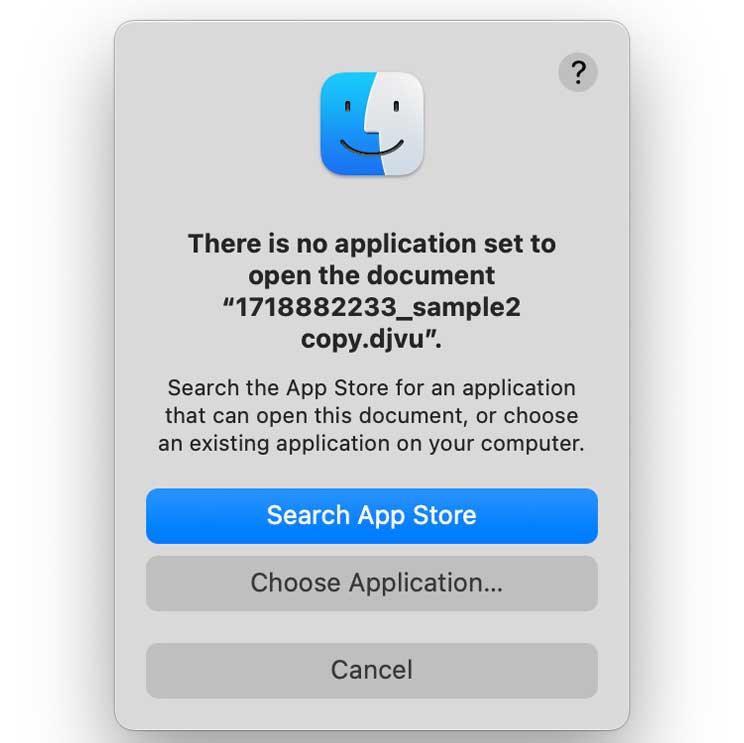
And that’s when the panic kicked in - because the client message ended with:
“Can you check the scanned pages and leave comments today?”
Great.
So there I was, desperately Googling “how to open .djvu file” at 11 PM while questioning every career choice that led me to this moment.
In this guide, I’ll talk what is DjVu, how to open, read, and view DjVu files on Windows, Mac, Linux, and mobile devices.
First of all… what even is a DjVu file?
Think of a DjVu (pronounced "deja vu") file as PDF’s nerdy cousin.
DjVu files are mostly used for scanned books, research papers, comics, old magazines, and archived documents because they keep image quality high while making file sizes surprisingly small.
I tested the same scanned textbook in both formats using online or offline converters. The PDF version reached 264.4mb MB, while the DjVu version was just 40.3MB without a noticeable loss in readability at normal zoom levels. On an older laptop with 8 GB RAM, the DjVu file also opened faster and scrolled more smoothly in lightweight readers like Sumatra PDF. That’s why universities, libraries, and document collectors still use DjVu instead of PDF.
The problem?
Most users don’t know what to do with them out of the box. Since DjVu is not natively supported by most operating systems, you’ll need a dedicated DjVu reader or converter to view these files properly.
Fast, Lightweight and Powerful DjVu Viewer for Mac & Windows

-
Enolsoft DjVu Viewer
Open and read one or multiple DjVu/DJV files smoothly in tabbed windows
Provide flexible reading modes and navigation tools for comfortable viewing
Support thumbnails, table of contents and full screen reading
Convert DjVu to PDF or PNG without quality loss
Search text, add bookmarks, rotate pages and print DjVu documents easily
Handle large scanned books and academic documents with smooth performance
Compatible with macOS 10.14 or later and modern Windows systems
Free Download
My “DjVu survival kit”
After way too much trial and error, I found a few tools that made dealing with DjVu files ridiculously easier. And honestly? They each solve a different kind of problem.
Ingredient #1: Open DjVu Files Online with DjVu.js Viewer
If you just need to quickly open a DjVu file without installing anything, DjVu.js Viewer is probably the fastest option I tested.
It works directly in the browser and supports Windows, Mac, Linux, and mobile devices. In my testing, small and medium DjVu files loaded fairly quickly, although scrolling between pages could lag for a few seconds. Large scanned DjVu books were much harder to handle — one big file froze the browser for several minutes before finally opening only the first page.
One thing I noticed immediately: Continuous Scroll mode actually made scanned text look clearer than Single Page mode.
Text selection also depends heavily on the file itself. Non-scanned documents allowed selectable text after switching to Text Cursor mode or Text View mode, while scanned DjVu files usually showed “No text on this page.
How to open a DjVu file online
- Open DjVu.js Viewer
- Drag your
.djvufile into the upload box
![]()
- Wait for the first page to load
- Use Continuous Scroll mode if the text looks blurry
- Switch to Text View mode if you want to copy text
![]()
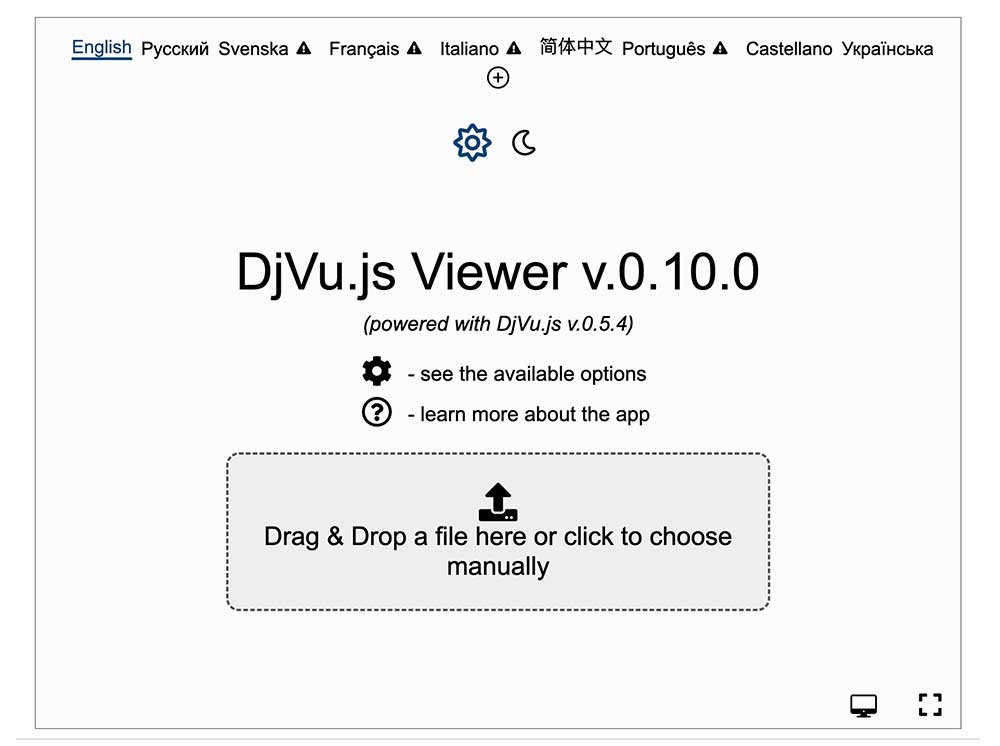
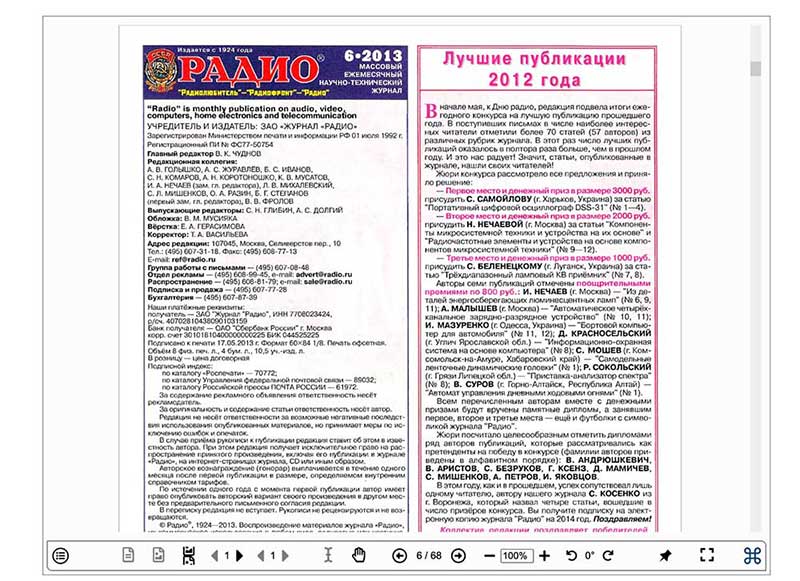
One limitation: the viewer only supports opening one file at a time. If you want to open another DjVu file, you’ll need to refresh the page first.
Ingredient #2: Open DjVu Files on Windows with WinDjView
After struggling with browser viewers, I switched to WinDjView - and honestly, this was the first tool that felt built specifically for DjVu files instead of barely tolerating them.
I downloaded it from SourceForge and the difference was immediate. Small, medium, and even very large DjVu files opened surprisingly fast. Unlike online viewers, it also supports opening multiple DjVu files at the same time.
Interestingly, corrupted DjVu files didn’t crash the app during my tests. They opened as blank pages instead. WinDjView also remembers the last file and reading position automatically, which is surprisingly useful when reading large scanned books or research papers.
The image quality was decent overall, although text edges often looked slightly jagged. Dark-background scanned documents looked noticeably clearer than bright scans.
For non-scanned DjVu files, text copying worked fairly well and even preserved most paragraph formatting after pasting. But scanned documents behaved very differently — text selection, find, and text export were basically unusable unless the file already contained OCR text.
How to open a DjVu file with WinDjView
- Download WinDjView from SourceForge
- Install and launch the app
- Drag your
.djvufile into the window
![]()
- Use Continuous Layout or Facing Pages mode for easier reading
- Use the Rectangle Tool if you want to export specific pages as PNG images
![]()
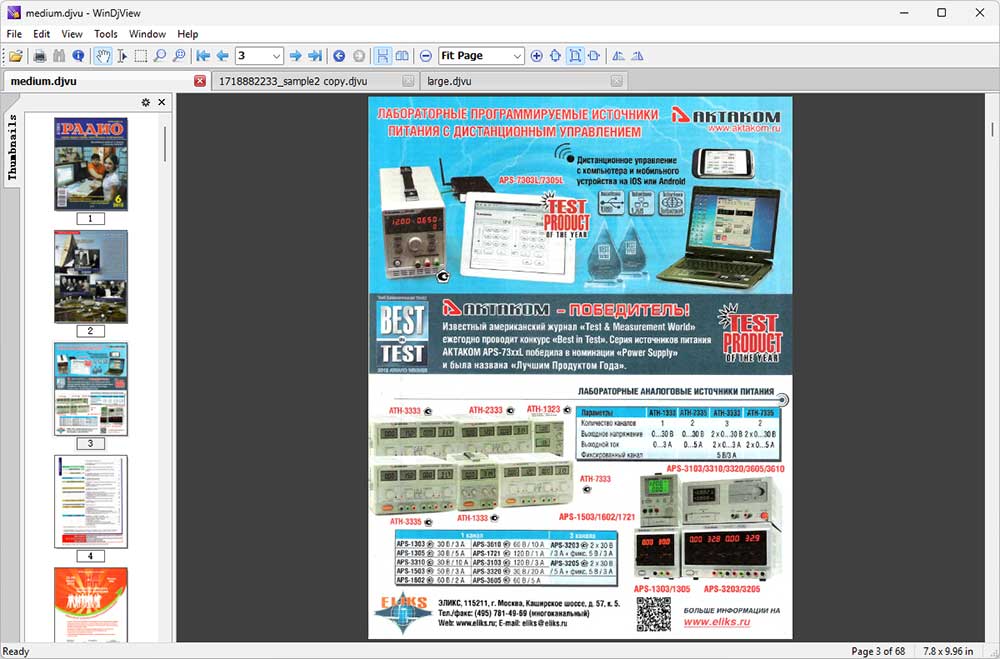
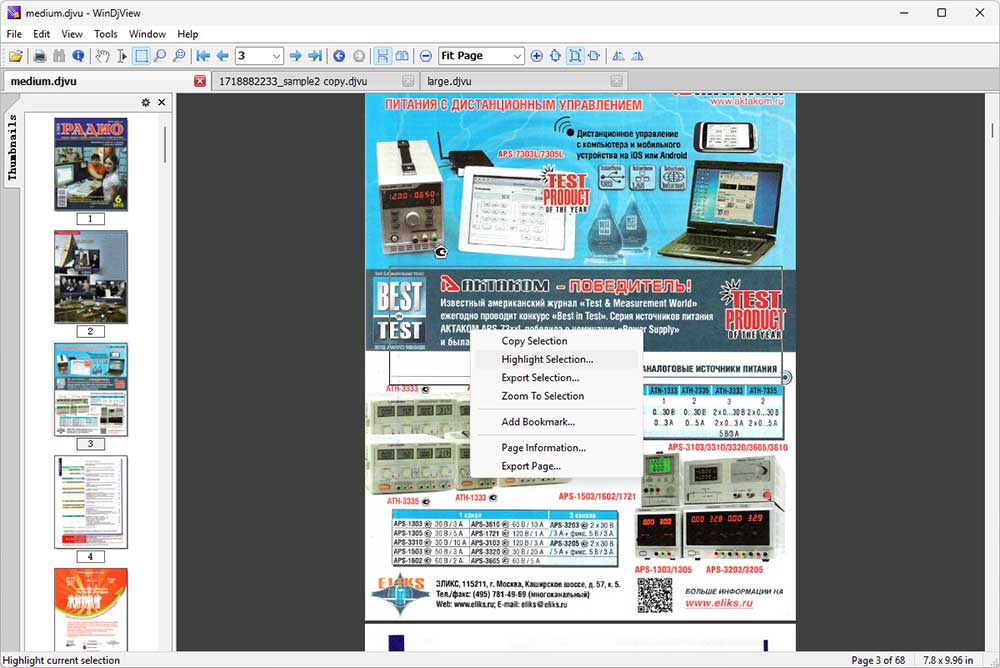
One important thing to know: WinDjView cannot directly convert DjVu to PDF. Using Microsoft Print to PDF only creates scanned PDFs where text usually remains unselectable.
Ingredient #3: Open DjVu Files on Mac and Windows with Enolsoft DjVu Viewer
Since Preview cannot open DjVu files natively, I tested Enolsoft DjVu viewer on both Mac and Windows to see how well it actually handles large scanned documents.
Compared to browser-based viewers, the experience was much smoother. Small and large DjVu files both loaded quickly in my tests, and even low-quality scanned pages stayed surprisingly readable. The app also remembers the last reading position automatically, which makes jumping back into long documents much easier.
It supports:
- Drag-and-drop opening
- Thumbnail view
- Two-page reading mode
- Zoom and rotate tools
- Bookmarks
- Keyword search
- DjVu to PDF conversion
- DjVu to PNG export
- Printing support
The built-in search was noticeably better than most DjVu readers I tested. When a file contains an OCR text layer, search results appear in a sidebar and you can jump directly between matches. Without OCR, search simply doesn’t work.
Text copying also depends on the document itself. Non-scanned DjVu files allowed selectable text, although pasted text usually kept a line-by-line layout instead of full paragraph formatting.
How to open a DjVu file on Mac
- Download Enolsoft DjVu Viewer
Free Download on Windows Free Download on Mac - Drag your
.djvuor.djvfile into the app
![]()
- Choose:
- Single page view
- Two-page view
- Thumbnail mode
- Use Zoom to Fit Window for easier reading
- Use Search if the DjVu file contains OCR text
![]()
- Use Save as PDF if you need a more compatible format
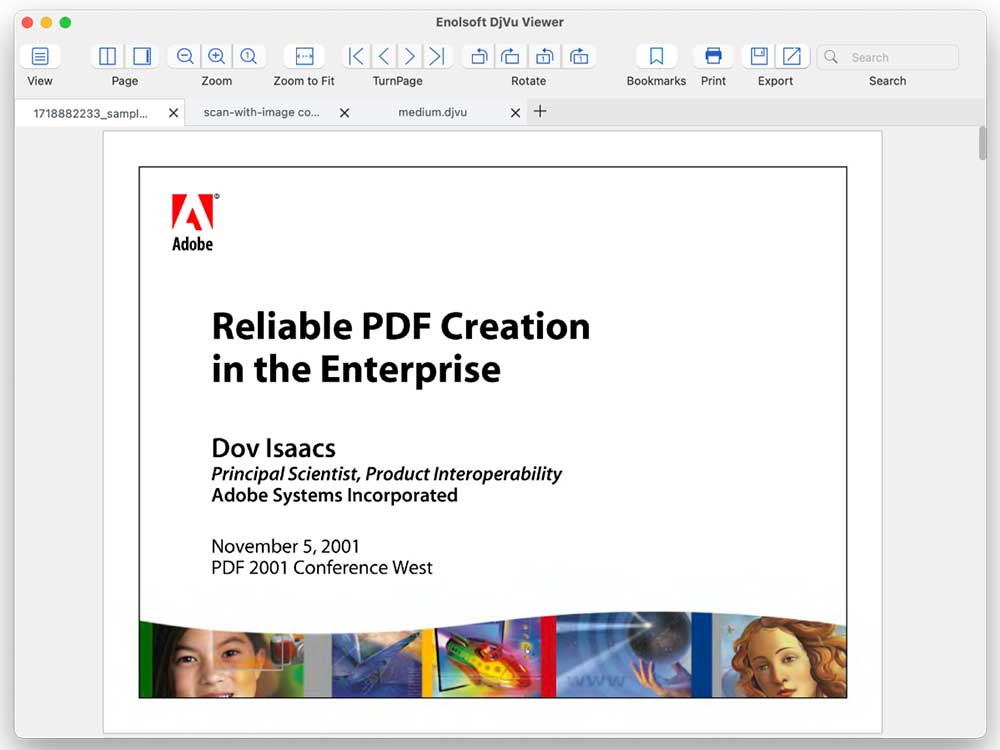
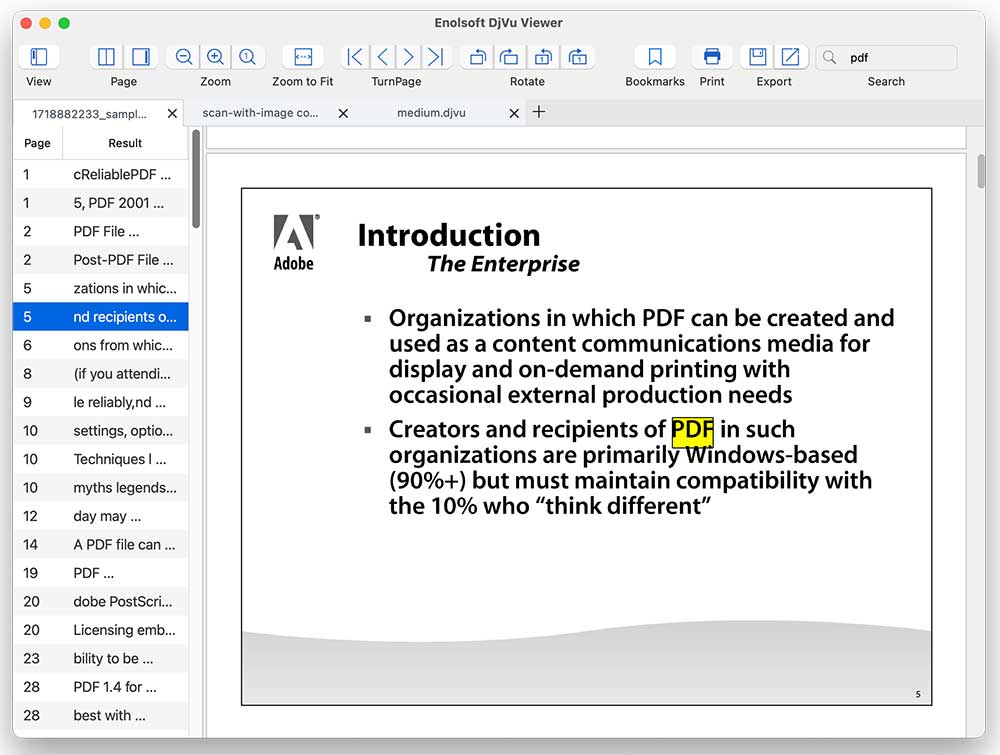
In my testing, converting non-scanned DjVu files produced searchable PDFs with selectable text, while scanned DjVu files were usually exported as scanned PDFs without selectable text.
Ingredient #4: Open DjVu Files on Android and iPhone with PocketBook Reader
For mobile devices, PocketBook Reader was one of the easiest ways I found to open DjVu files on both Android and iOS.
After downloading a DjVu file to my phone, the app opened both small and large documents surprisingly fast. It also syncs your reading position, library, and books across devices automatically, which is useful if you switch between phone, tablet, and desktop.
The reading experience feels much more customizable compared to desktop DjVu readers. You can adjust:
- Font size and scaling
- Text and background colors
- Brightness
- Reading modes
- Page margins
- Screen rotation
- Reading progress display
It also supports notes and Text-to-Speech, although Text-to-Speech only worked on DjVu files with selectable OCR text. Pure scanned documents without OCR could not be read aloud.
How to open a DjVu file on Android or iPhone
- Install PocketBook Reader
- Download the
.djvufile to your device - Open the file with PocketBook Reader
![]()
- Adjust brightness, scaling, or reading mode if needed
![]()
- Use Text-to-Speech or Search if the file contains OCR text
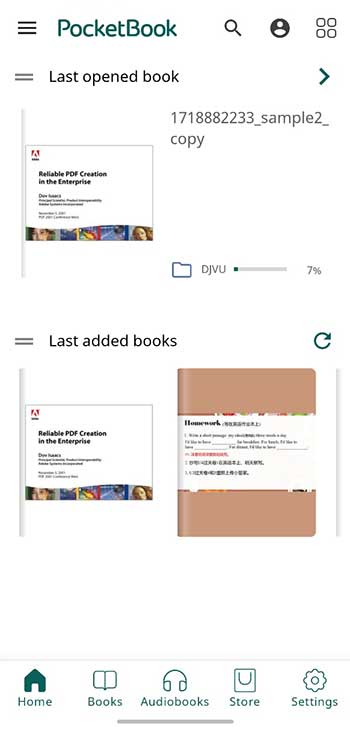
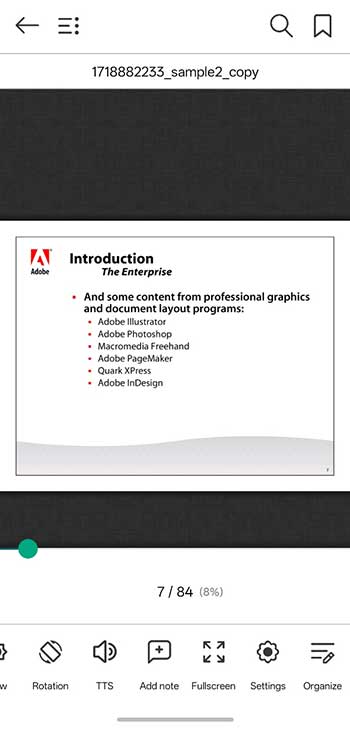
For casual reading on mobile devices, this was honestly one of the smoothest DjVu experiences I tested.
Ingredient #5: Convert DjVu to PDF with DjVu2PDF.com
Sometimes the easiest way to open a DjVu file is honestly just converting it into a regular PDF first.
I tested DjVu2PDF.com because it works directly in the browser and supports batch uploads. You can drag multiple DjVu files into the converter, although files are processed one at a time instead of simultaneously.
Small DjVu files converted within about 1 minute, medium-sized files took around 4 minutes, but large files were especially frustrating. Sometimes dragging them into the page produced absolutely no response at all.
The download process was also surprisingly slow. Even small converted PDFs took a couple of minutes before becoming available, and medium-sized files sometimes needed 7+ minutes. The site also contains ads and occasional popup interruptions during conversion.
How to convert a DjVu file to PDF
- Open DjVu2PDF.com
- Drag your
.djvufiles into the upload area
![]()
- Wait for the conversion process to finish
- Download the converted ZIP archive
- Extract the PDF from the ZIP file
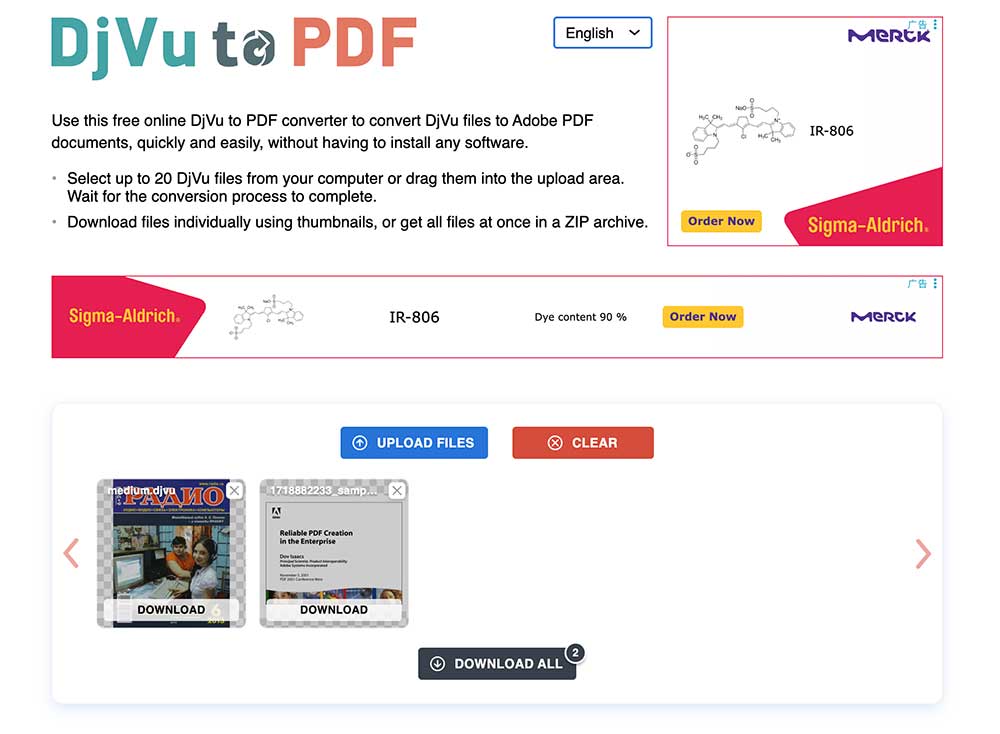
One important thing I noticed: both scanned and non-scanned DjVu files were converted into image-based PDFs. Even when the original DjVu contained selectable text, the exported PDF usually behaved like a scanned PDF where text could not be searched or copied.
The mistake I made the first time
Here’s something nobody told me:
Not all DjVu files are the same.
Some contain searchable text layers. Others are basically just scanned images packed into a file.
That means:
- some files let you copy text,
- some don’t,
- some zoom beautifully,
- and some look like they were scanned using old devices from 2003.
I wasted an embarrassing amount of time trying to “fix” a low-quality DjVu before realizing the original scan itself was terrible.
So if your DjVu looks blurry, the app may not actually be the problem.
FAQs
Can Chrome or Edge open DjVu files?
Chrome or Edge does not natively support DjVu files. During testing, when you try to add a DjVu document, Chrome will just download file.
Is DjVu better than PDF?
DjVu is usually smaller for scanned image-heavy documents, especially books and archives. PDF remains more universally supported across browsers and devices.
Are DjVu files safe?
DjVu files themselves are generally safe, but downloading them from unknown archive sites can still expose users to malicious bundled downloads. Using trusted reader software and reputable download sources reduced that risk during testing.
Can I Search Text Inside DJVU Files
Some DJVU files support searchable text through OCR (optical character recognition), while others are only scanned images. If text search does not work, the document may not contain OCR data.
Final thoughts: Don’t panic when you see “.djvu”
The first time I saw a DjVu file, I genuinely thought:
“There’s no way this is going to open.”
Turns out, it’s actually pretty easy once you have the right tools.
Whether you use DjVu.js Viewer, Enolsoft DjVu Viewer, WinDjView, or PocketBook Reader.
you’ll be opening DjVu files in minutes instead of rage-clicking them for an hour like I did.
And who knows?
Today it’s a DjVu file.
Tomorrow you’re the office “document wizard” getting praised for solving problems nobody else understands.

Bryan is the Chief Writer at Enolsoft for 15 years. He doesn’t just document software, he is more like a power user that bridges the gap between complex file management systems and the real people who use them, showing users the easiest way to turn digital chaos into streamlined efficiency.
Comments (0)
Leave a Reply