


How to Convert PST to EML on Mac (Free, Secure & Risk-Free Approach)




Many Mac users struggle to open Outlook PST files or need a way to convert PST to EML on Mac when they try to migrate emails from outlook to Apple Mail, Thunderbird, Gmail, or other email clients.
The problem is that PST files are mainly designed for Microsoft Outlook, and Outlook for Mac has limited PST support compared to Windows. Things becomes even more complicated for old or large archive files.
I’m on macOS Tahoe, and I’ve tested most of the popular methods for converting PST to EML on Mac. Below is what actually worked for me. Some methods work well for small PST files, while others are better for large mailbox migrations. Most of the ways will preserve email content, attachments, and metadata during the conversion.
In this guide, you will learn:
- How to convert PST to EML on Mac manually
- How PST to EML converter tools simplify the migration
- How to convert specific folders or date ranges of a PST file to EML
- Common Outlook for Mac limitations
- Troubleshooting tips for PST to EML conversion
- Which method is best for your situation
Quick Answer
| Question | Answer |
| Can you convert PST to EML on Mac? | Yes |
| Do you need Outlook installed? | Not always |
| Best free method | Manual export using Outlook |
| Best for large PST files | Professional PST to EML converter |
| Can Apple Mail open EML files? | Yes |
| Does Outlook for Mac fully support PST? | Limited support depending on version |
| Can I convert PST to EML without Outlook | Yes, PST to EML converter workout Outlook |
- PST files are not fully supported on modern Mac email clients
- EML is easier to import into Apple Mail, Thunderbird and Gmail
- Manual PST to EML conversion works best for small PST files
- Large PST archives usually require a dedicated converter
- Some methods require Legacy Outlook for Mac
- Creating a backup before conversion is strongly recommended
Why Users Convert PST to EML on Mac
| User Scenario | Why EML Is Needed |
| Moving from Outlook to Apple Mail | Apple Mail supports EML import |
| Switching to Thunderbird | Thunderbird handles EML more easily |
| Accessing old Outlook archives | Need to access old Outlook emails without installing Windows or Outlook |
| Email backup | EML files are universal, lightweight, and compatible with almost every email client, MS Outlook PST files are not readable outside of Outlook. EML files are lightweighter than PST files |
| Legal/compliance export | EML is easier to review and preserve |
| Want to share specific emails easily | EML stores emails individually |
| For further analyzing and integrating | Developers prefer EML because it is more straightforward to analyse and integrate programs due to its being plain text |
Common Problems Mac Users Face During PST to EML Conversion
- Outlook for Mac cannot directly export PST emails as EML in some versions
- New Outlook for Mac removed several legacy export features
- Large PST files may freeze during import or export
- Manual drag-and-drop export becomes very slow with thousands of emails
- High risk of missing attachments, email headers, or folder structure after the conversion
- Some old PST files become unreadable on newer macOS versions
- Corrupted PST files can stop conversion completely
- Free workarounds usually compromise data integrity
Note: Always create a backup copy of the original Outlook data file before conversion, since PST files usually contain important data. Large or damaged PST archives may occasionally experience export issues during manual conversion.
How We Test These PST to EML Converters for Mac
When selecting these PST to EML converters for our review, we considered both popularity and features, focusing on the core features of the products, as well as user reviews and reviews from authoritative websites.
We conducted real tests and compared the performance of the products when converting both small sized PST file, large sized PST file, password protected PST file and corrupted PST file. Our selection follows the following principles:
- Format Compatibility: The output EML's compatibility with Apple Mail, Thunderbird, Gmail, etc.
- Large PST file support and processing time.
- Convert healthy, corrupted, and password-protected PST files
- Ability to preserving formatting, hyperlinks, embedded images, content, calendar, contacts, attachments, and folder structure.
- Data Integrity: Whether is can preserve original metadata for legal consideration.
- Batch Conversion: Allows for the conversion of multiple files at once.
- Ability to export specific folders, content types, or date range.
- No Outlook Requirement: Many tools work independently of Microsoft Outlook.
- Unicode Support: Supports PST Files of Outlook 2021, 2019, 2016, 2013, 2010, 2007, etc.
Method 1 - Convert PST to EML on Mac Manually Using Outlook
Best For: Personally tested and reliable for handling small PST files, or use it for occasional exports.
If Outlook for Mac can open your PST file successfully, you may be able to export emails manually.
In my testing, I found that Outlook was quite slow when importing PST files on Mac. Even a PST file smaller than 1 GB took a long time to import, while larger files often caused Outlook to freeze completely. I also noticed that clicking “Cancel” did not stop the process immediately, and in many cases I had to force quit, after waiting for 1 hour. For password-protected PST files, Outlook asked me to enter the password before importing. Corrupted PST files could not be loaded at all during my tests.
Steps to Convert PST to EML on Mac Manually
- Open Outlook for Mac
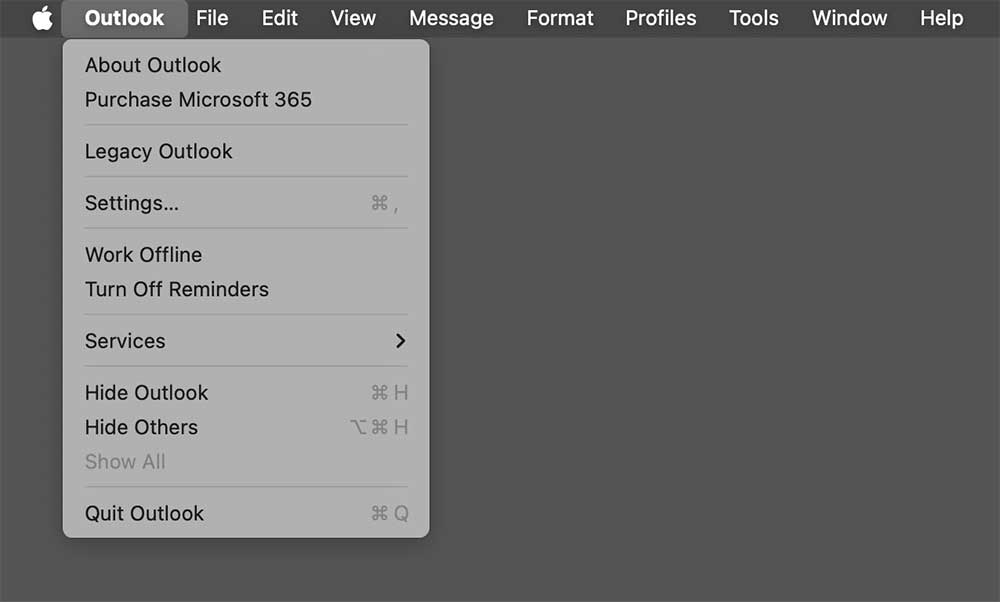
- Switch to legacy outlook: This method works only with legacy outlook, so we first need to switch the new outlook to legacy. In the menu, Click Outlook >> Legacy Outlook >> Revert
![]()
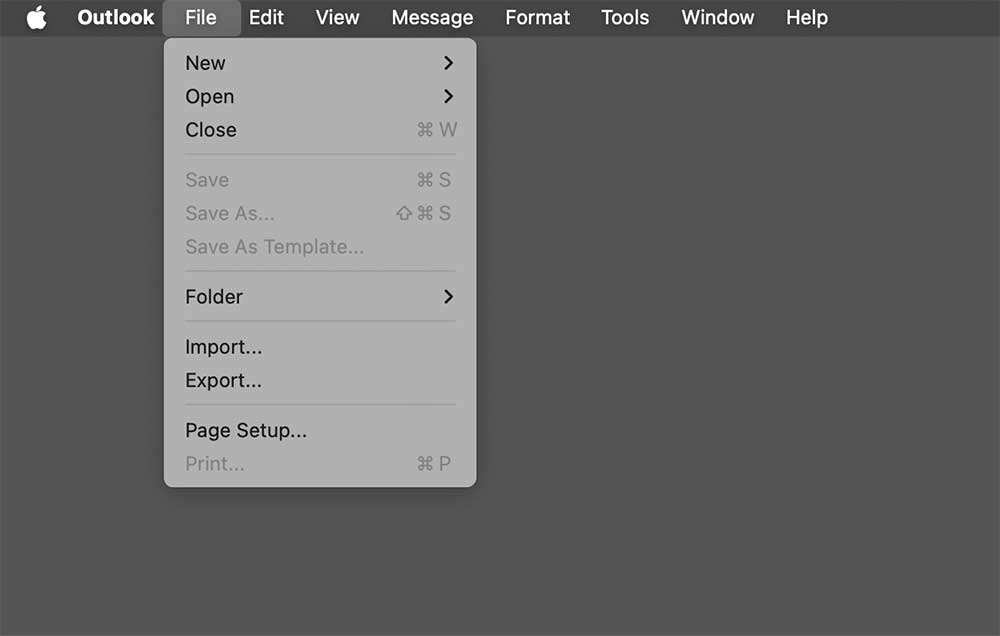
- Import the PST File: Go to File → Import
![]()
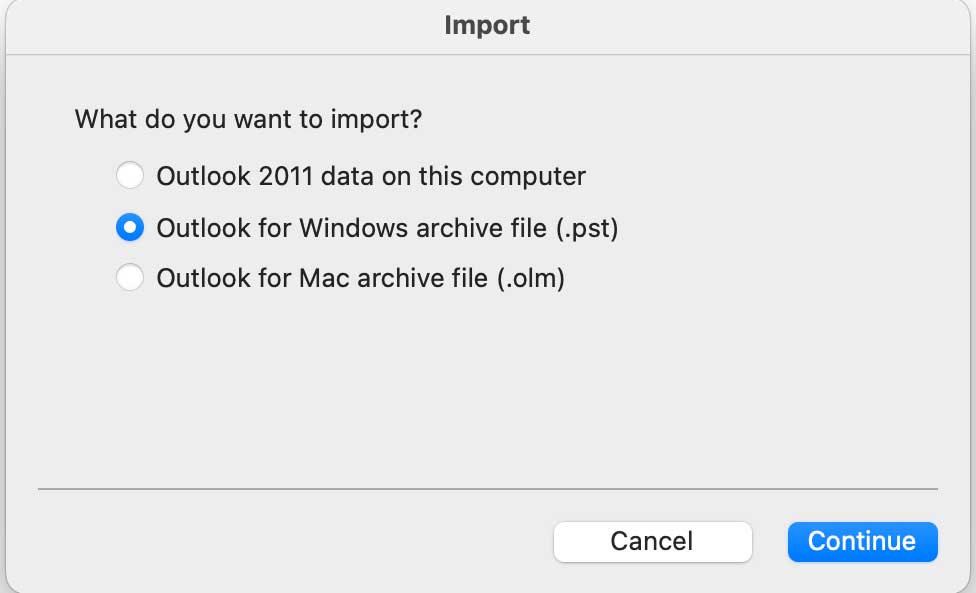
- Then select Outlook for Windows archive file (.pst) and click Continue
![]()
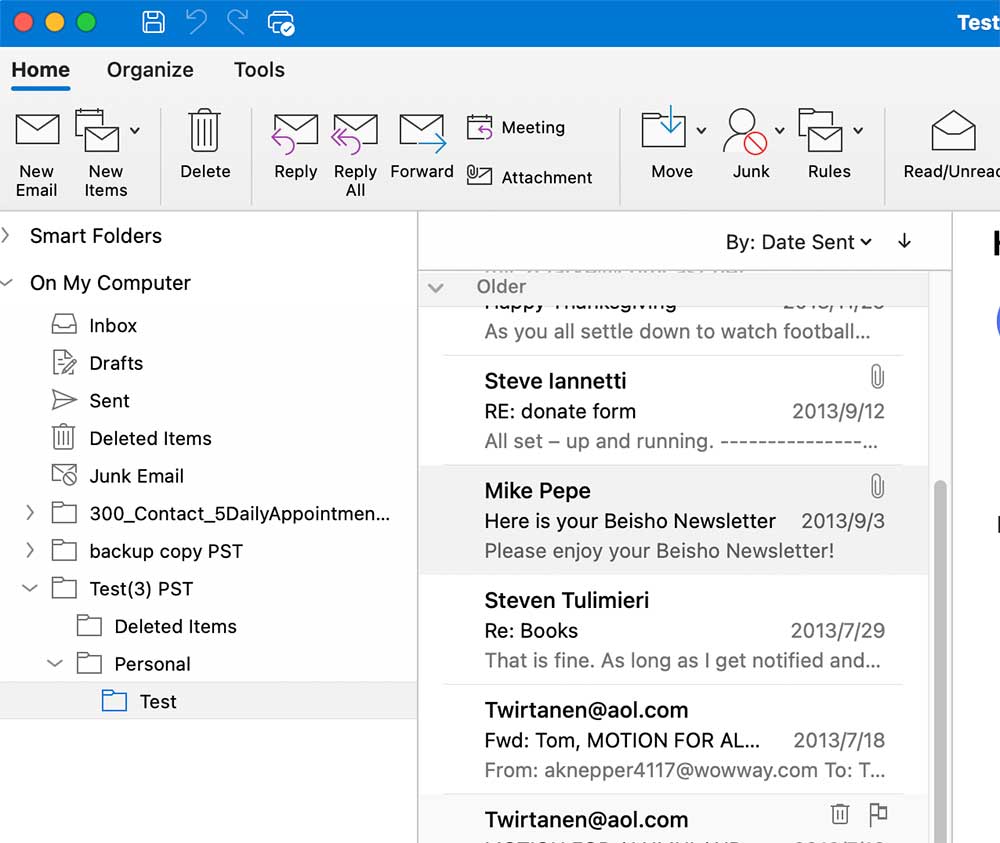
- Open the Imported Mailbox: After importing, locate the mailbox folders inside Outlook. You will see it in the left sidebar.
![]()
- Drag Emails to Finder: Drag individual emails or selected email groups from Outlook to a folder on your Mac desktop. Outlook will export the emails as EML files.
![]()
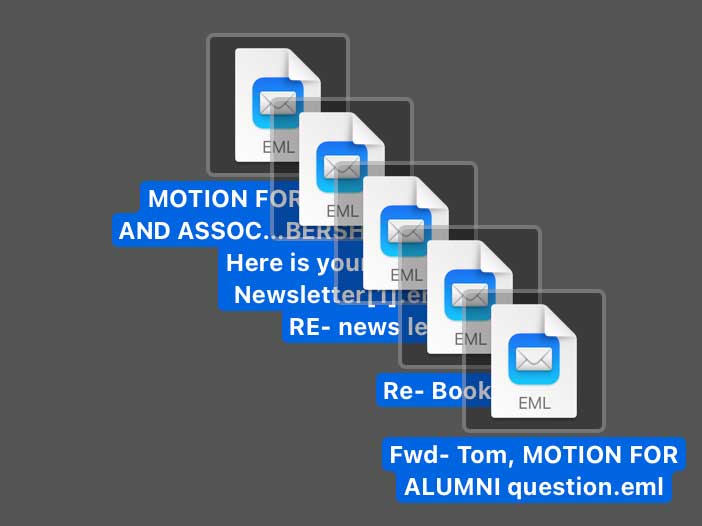
- Verify the Exported Files: Open the exported EML files using Apple Mail(You just need to double click on the file to open it on Mac)or another email client to confirm:
- Content show clearly
- Contacts, links, calendar, tasks are included.
- Attachments are intact
- Embed images and other file are there
- Formatting is preserved
- Metadata is readable and unchanged
What I liked
- Free
- No additional software required
- It worked for some smaller and healthy PST files
- Drag and drop to finish the steps
- Useful for occasional email extraction
What I didn’t like
- Importing was very slow, even for PST files smaller than 1 GB
- Larger PST files often caused Outlook to freeze or become unresponsive
- Need manually enter the password for password-protected PST files, if you forgot the password, it's impossible to import the file.
- Slow drag-and-drop export, sometimes it may freeze during export
- Cannot convert emails in bulk, repetitive and time consuming
- Old ANSI PST files may not import correctly
- Corrupted PST files could not be loaded successfully
- Cannot filter date range or email components in manual methods
- Attachments cannot be managed or extracted separately
- There is a chance of missed emails, formatting issues, or attachment errors.
Method 2 - Use Enolsoft PST Viewer - Convert PST to EML without Outlook on Mac and Windows
Best For: Large PST archives, bulk migration, and non-technical users
In my testing, Enolsoft PST Viewer was by far the fastest and easiest way to convert PST to EML on Mac. Although it’s called a PST Viewer, it actually works as a full PST conversion tool that can export emails to EML, PDF, TXT, VCF, ICS, and several other formats without requiring Outlook installation.
What I liked most was how smoothly it handled large PST files. I was able to upload multiple PST files at once, browse the mailbox structure exactly like Outlook, and preview emails before exporting them. This made it much easier to verify everything before starting the conversion.
The software also preserves the original folder hierarchy, email formatting, metadata, attachments, embedded images, hyperlinks, and headers during export. After conversion, all emails stayed in their original folders and subfolders, which helped keep large mailbox archives organized and easy to manage.
Another thing I found useful was the flexible export options. I could export an entire PST file, choose only specific folders, or even export only certain data types, such as:
- Emails to EML
- Contacts to VCF
- Calendars and Journals to ICS
- Notes to TXT
On macOS, it also supports exporting contacts directly to Apple Contacts and calendars to Apple Calendar using native system integration.
During my tests, the software successfully converted ANSI, Unicode, and password-protected PST files while maintaining data integrity throughout the process. It also supports bulk conversion, advanced filters, attachment handling, and large PST files without noticeable slowdowns. However, corrupted PST files were still unsupported in my testing.
Steps to Convert Outlook PST to EML
- Firstly, download Enolsoft PST Viewer from Mac App Store or the official website.
Free Download - Drag and drop to add the PST file to the program's main interface.
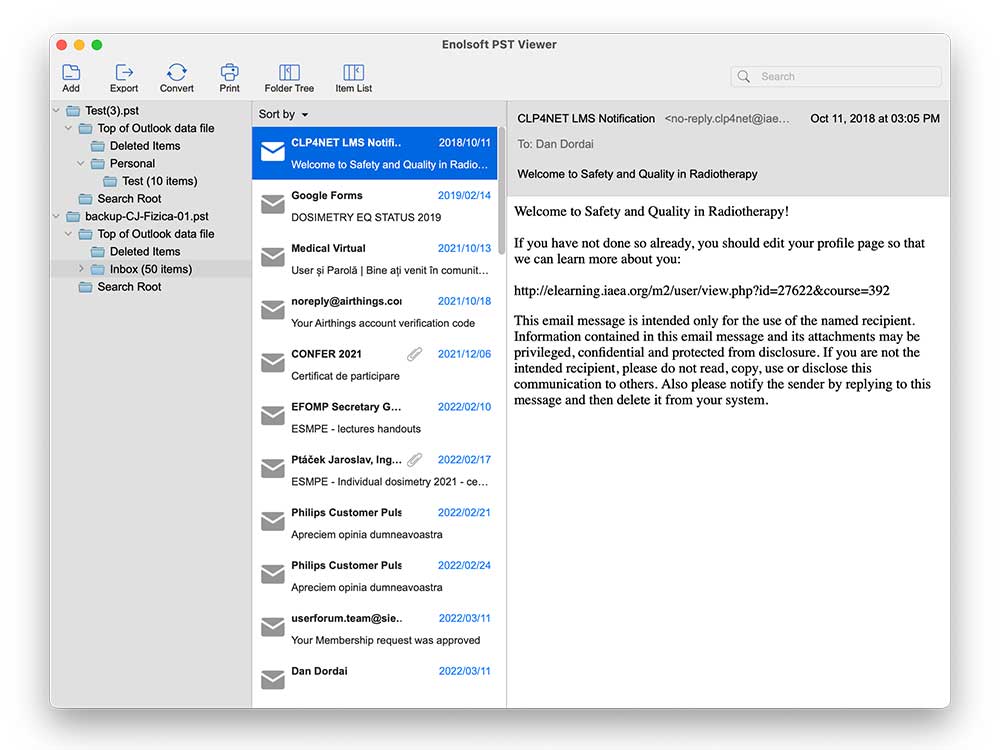
- In the left-side panel, expand the folders, select the files, and preview them.
![]()
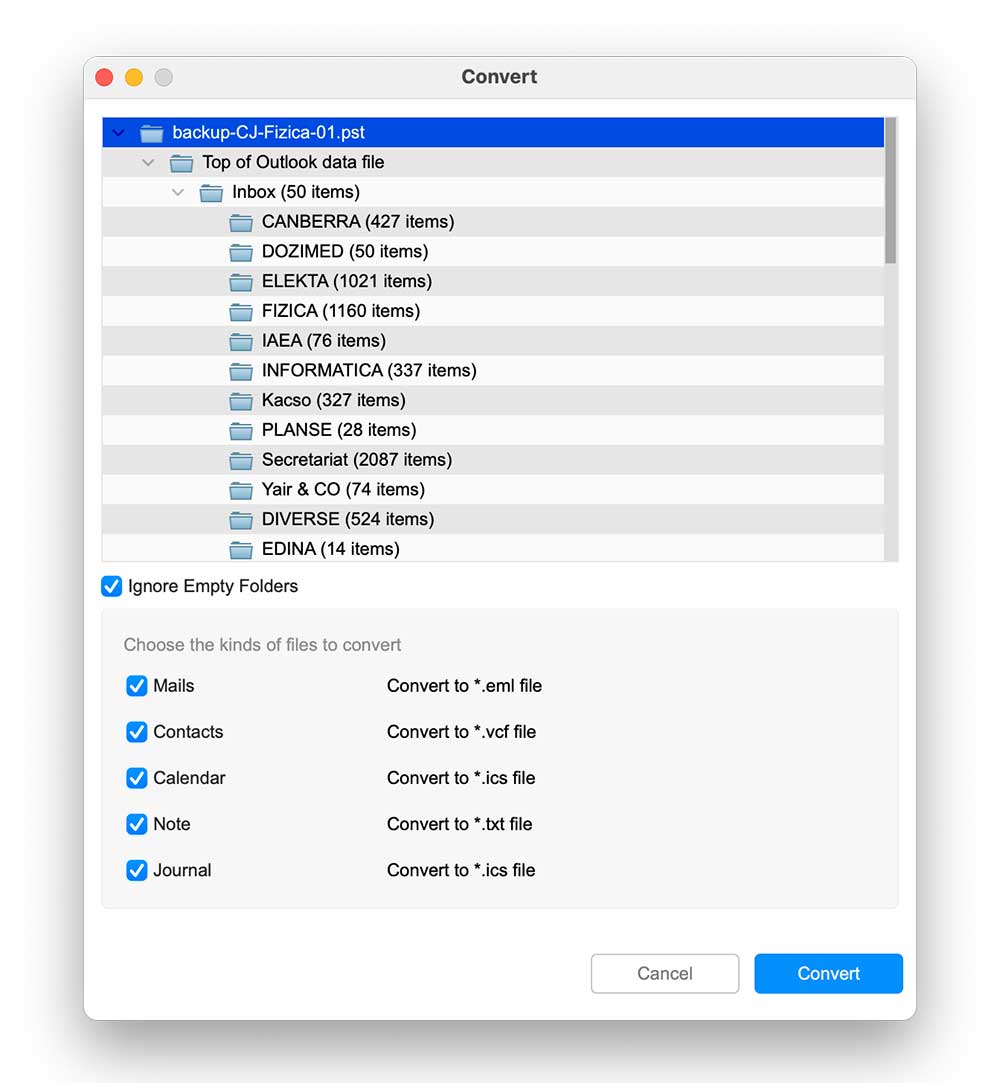
- Click Convert and in the pop up window select EML from the available options.
![]()
- Lastly, click Convert to start the process.
-
Optionally, customize additional settings:
Specific folder or folders which you want to export as EML
Export attachments, Contacts, Calendar, Mails, Note, or Journal separately. - After completion, verify the generated EML files.
What I liked
- Much faster than Outlook during PST import and conversion
- No Outlook installation required
- Supports bulk PST to EML conversion
- Lets me export entire PST files or selected folders only
- Preserved folder hierarchy, metadata, attachments, formatting, and email structure
- Preview feature helped me verify emails before conversion
- Supports ANSI, Unicode, and password-protected PST files
- Can export contacts, calendars, notes, and journals separately
- Handles large PST files without freezing
- Local processing keeps data private and secure
- Supports exporting to multiple formats besides EML
- Advanced filters available for date, sender, recipient, subject, and more
- Easy enough for non-technical users
What I didn’t like
- Corrupted PST files could not be converted in my testing
- Cannot set to export by date range or email components
Manual vs Professional PST to EML Converter for Mac
| Feature | Manual Method | Professional Converter |
| Bulk conversion | Limited | Yes |
| Large PST support | Poor | Good |
| Outlook required | Yes | No |
| Attachment preservation | Unstable | Better |
| Speed | Slow | Fast |
| Password protected PST | Need password | No need to enter password |
| Folder structure retention | Limited | Better |
| Technical skill needed | Medium | Low |
| Best for | Small PST files | Large PST file, Business migrations |
Method 3 - Use an Online PST to EML Converter
Best For: Small PST files and quick one-time conversions
Important: Your Outlook Data File contain important and confidential data. When use an online service to convert PST files to EML, all of your sensitive data, including private emails, contacts, tasks, attachments, etc. are at risk, as files may be stored indefinitely, potentially resulting in data leaks of sensitive, personal, or legal documents.
I also tested an online PST to EML converter from CoolUtils to see whether it could provide a faster alternative without installing software. The process was simple since everything runs directly in the browser, but the actual performance was disappointing in my testing.
Even uploading a very small 200 KB PST file took nearly 10 minutes to complete. For larger PST archives, the upload process would likely take much longer depending on your internet connection.
After conversion, I also noticed that the exported EML files did not fully preserve the original email structure. Some message information was missing, and several attachments were not included in the final exported files. While the tool supports encrypted PST files, the overall conversion quality felt less reliable compared to desktop software.
Since the conversion happens online, it may still work for quick or occasional tasks, but I wouldn’t recommend it for important mailbox migrations or large PST archives.
Steps to Convert Outlook PST to EML Online
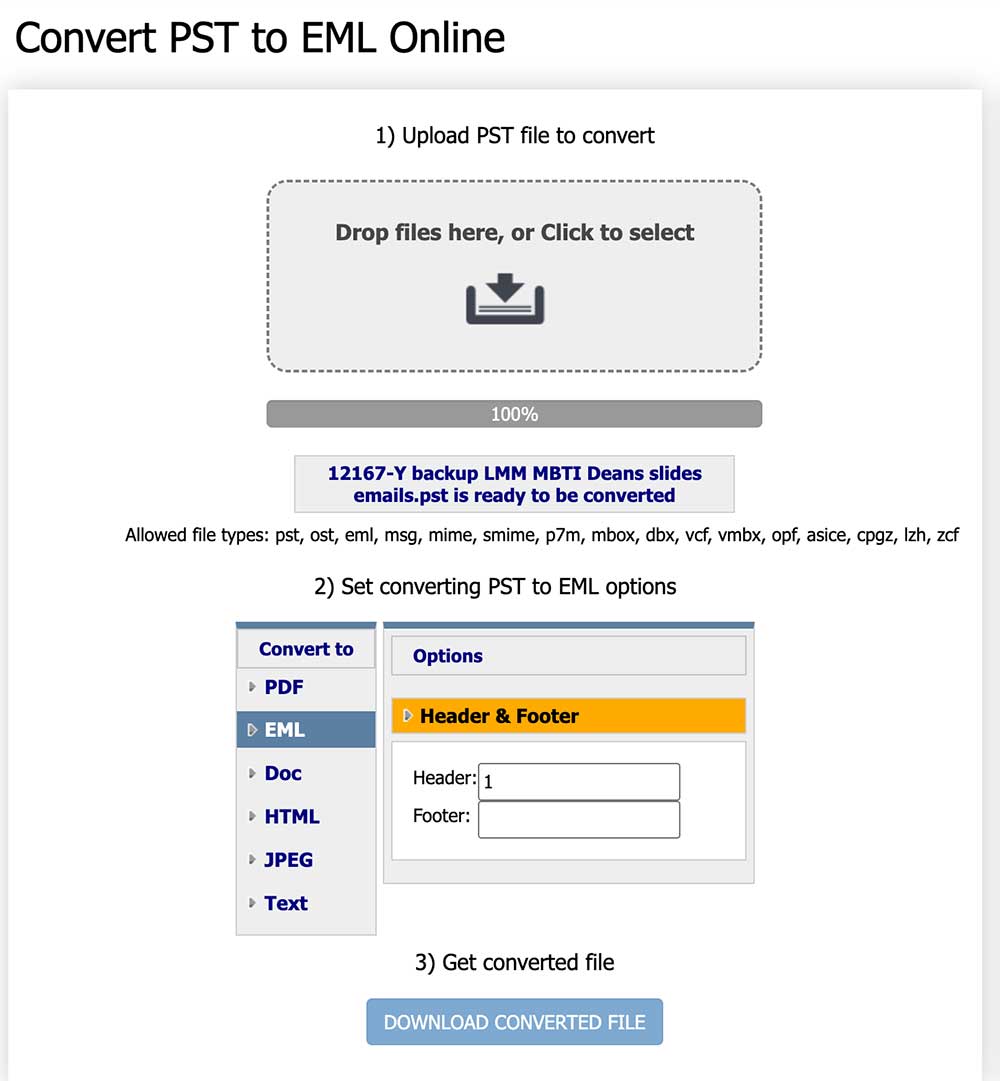
- Open the online PST to EML converter website in your browser.
- Drag and drop to add the PST file from your computer.
- Wait for the PST file to finish uploading. (In my testing, even a small PST file took quite a long time to upload.)
![]()
- Choose EML as the output format.
- Wait for the site to process the PST file online.
- Once the conversion is complete, click DOWNLOAD CONVERTED FILE, wait a second, it will download the EML file to your Mac.
- Open the downloaded EML files in your preferred email client to check whether the emails, attachments, and formatting were preserved correctly.
What I liked
- No software installation required
- Simple browser-based workflow
- Supports encrypted PST files
- Convenient for quick one-time conversions
What I didn’t like
- Upload speed was extremely slow in my testing
- Even a 200 KB PST file took around 10 minutes to process
- Email structure was not fully preserved after conversion
- Some email information was missing in exported EML files
- Certain attachments were lost during conversion
- Not ideal for large PST files or important mailbox migrations
- Requires uploading sensitive email data to an external server
Alternative Ways to Access PST Emails on Mac
Some users choose alternative workflows instead of direct PST to EML conversion.
- Import Outlook into Thunderbird (Need to import from Outlook to Thunderbird, and then use Thunderbird to export emails to EML )
- Convert PST to MBOX first
- Import from Outlook and export with other email client.
However, these methods are time consuming and prone to errors. If something goes wrong, there’s no easy way to recover lost or damaged emails.
Frequently Asked Questions
Can Mac Outlook open PST files?
Yes, Outlook for Mac can open some PST files, but support is limited depending on the Outlook version. Most of the case, you need to switch to legacy view first.
How do I convert PST to EML without Outlook?
Most PST to EML converter are stand alone. These tools directly read the PST file and export emails in EML format without depending on any email client.
Can I convert a large PST archive in one operation?
With a good PST Converter, you can add multiple PST files, regardless of size, and convert the loaded PST files to EML in a single process. You may convert the whole PST file in a go or choose specific folder or several folders for conversion.
Will other email clients be able to open the converted EML files?
Unlike PST file which limit to Outlook, EML files are univeral email format, it is supported by many email programs like Thunderbird, Windows Mail, Apple Mail, and several others. Once you convert PST to EML, you can open, read, search, these EML messages across different email client without any issues. Even text editors can open EML file.
So which PST to EML Method should you pick?
Finding the right PST to EML converter is about balancing convenience with safety. If you only need to convert a few emails, manual Outlook export on Mac may be enough.
However, for large PST archives, bulk email migration, or situations where Outlook is unavailable, a dedicated PST to EML converter for Mac is usually faster and more reliable.
| Situation | Recommended Method |
| Small PST file | Manual export |
| Large PST archive | Professional converter |
| No Outlook installed | PST converter software |
| Corrupted PST file | Advanced PST converter with recovery support |
| One-time export | Manual method |
| Business email migration | Professional converter |

Bryan is the Chief Writer at Enolsoft for 15 years. He doesn’t just document software, he is more like a power user that bridges the gap between complex file management systems and the real people who use them, showing users the easiest way to turn digital chaos into streamlined efficiency.
Comments (0)
Leave a Reply