


What is an .XPS File and How to Open XPS (OXPS) Files




As an information specialist, I often get questions like,
"What is the XPS files sent to me by government offices or business partners?"
"How can I open an XPS/OXPS file?"
"XPS file are similar to PDF, Can I just change the extension from .xps to pdf?"
"Windows has an XPS viewer, but how can I read XPS files on Mac?"
Rest assured, XPS is not complex. This article explains what an XPS file is, how it differs from a PDF, and how to open XPS files on Windows and Mac and convert them to other formats. All with actual screen operations.
What Is an XPS File?
XPS - short for XML Paper Specification - Microsoft-developed format for saving electronic documents similar to PDF, and use the extensions " .xps" and " .oxps"
- The strength of XPS is similar to PDF, which can be displayed and printed faithfully on all devices.
- XPS uses the XML markup language to define the structure and content of a document, including its layout and appearance.
- All Windows computers are capable of opening XPS files. Microsoft has a built-in XPS Viewer; this function is pre-installed by default in older versions of Windows. For newer versions than Windows 10, one can use the optional features to install it.
- Unlike PDF, XPS is a compressed file that bundles all content and information into an archive. Therefore, you can also open XPS files with archive programs.
Further development of OXPS
Since Windows 8, the OXPS format has been primarily used. Both XPS and OXPS can be opened with an XPS viewer. OXPS is the newer OpenXPS format; XPS is the legacy format.
Difference Between XPS and PDF
XPS is a Microsoft-developed document format similar to PDF. The main differences between them are outlined below.
| Item | XPS | |
| Developer | Adobe | Microsoft |
| Main uses | Document sharing, forms, archiving | Printing & sharing on Windows |
| Data Format | PostScript-based (binary) | XML-based (ZIP package) |
| Editing | ✅ Editable with PDF Editors | ❌ Not editable after saving |
| Compatibility | Works on almost all devices | Mainly supported on Windows |
| Features | Forms, annotations, signatures | Fixed layout, basic annotations |
Key Differences at a Glance
- PDF is editable; XPS is not
- PDF is cross-platform; XPS is Windows-centric
- PDF is the industry standard; XPS is Microsoft’s alternative
- PDF supports advanced features; XPS focuses on fixed layout and printing
Usage of XPS in Document Workflows
XPS is commonly used in the following situations:
- Fixed-layout document sharing: Convenient for sharing documents that need to look exactly the same on all devices.
- Printing: XPS is often used for printing documents or storing read-only files where layout consistency is critical. Similar to a PDF printer, Windows offers the "Microsoft XPS Document Writer," which can be used to export documents to the XPS format.
- Secure document distribution: Since XPS files cannot be altered after creation, they are suitable for distributing finalized documents.
- Archiving: Due to its format stability, XPS is suitable for the long-term archiving of documents. However, PDF/A has become more prevalent in this area.
How to Open an XPS/OXPS File
Windows
On Windows 10 & 11, you can install the official Microsoft XPS Viewer to open XPS files. It's easy to use and only takes a few minutes to complete, and after that you'll be able to view XPS files stably.
To use the XPS viewer safely and reliably, the most reliable and recommended method is to add it online from the Windows 11 Settings app.
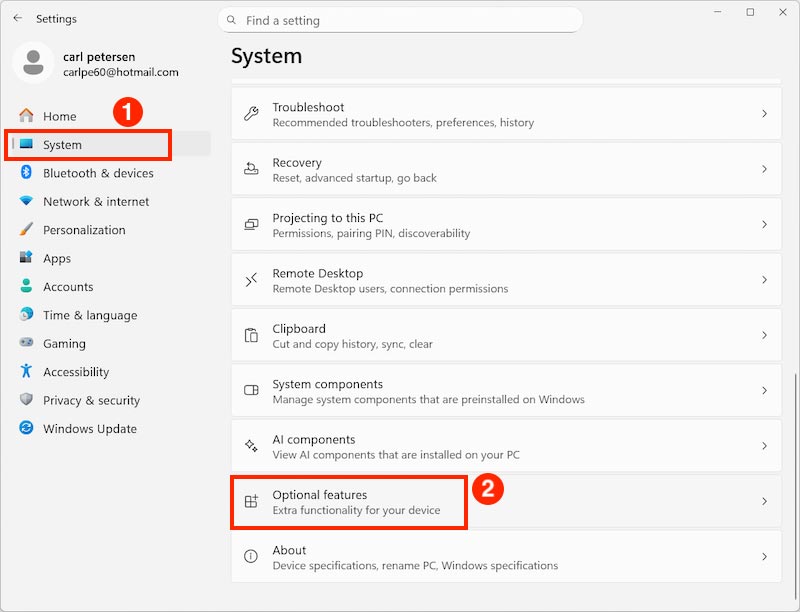
- Press the Windows key to activate Settings.
- Go to "System" and click the "Optional features" (scroll down, 2nd last option).
![]()
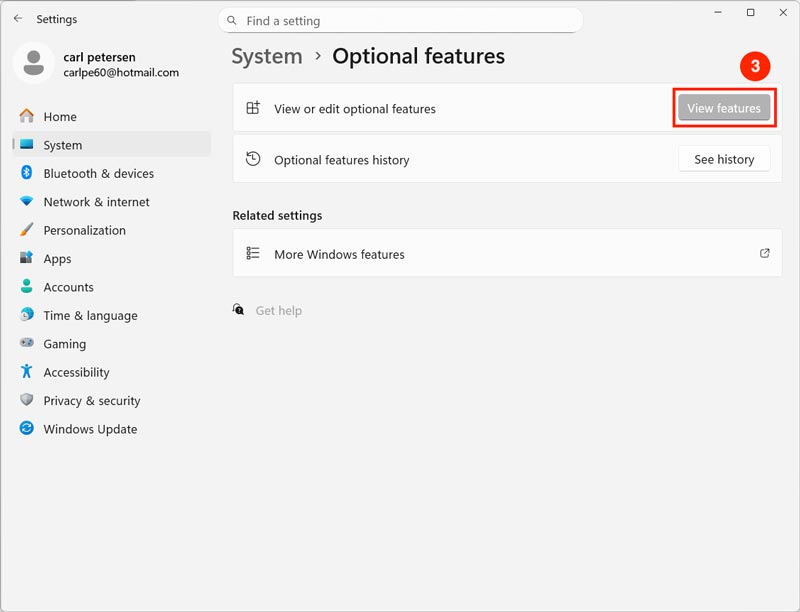
- Click "View Features."
![]()
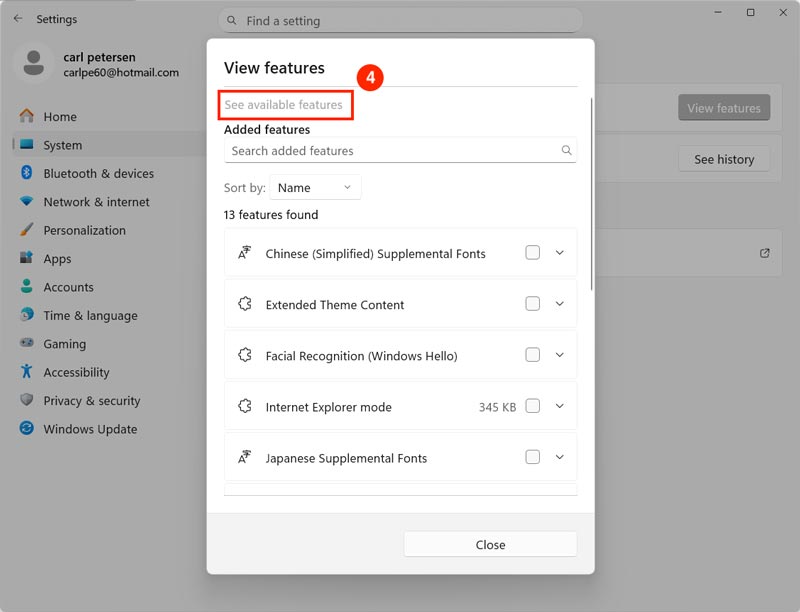
- Click "See available features."
![]()
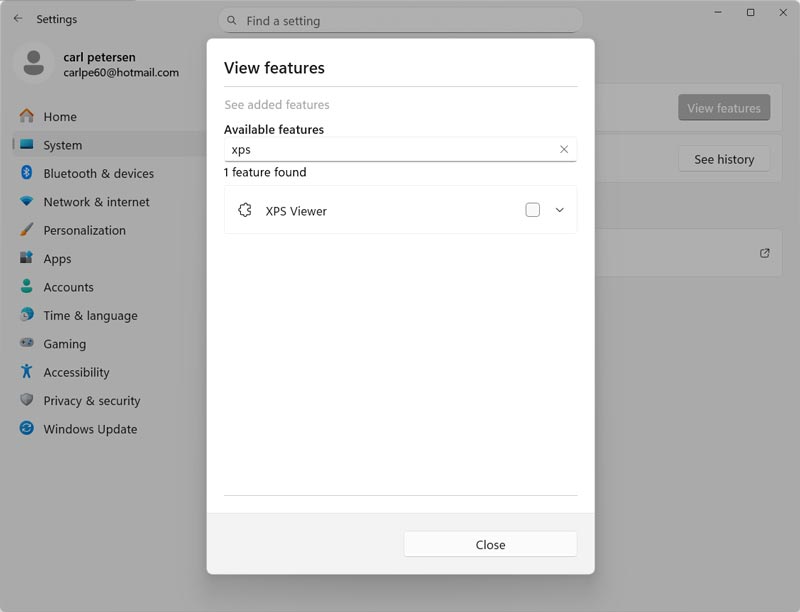
- Type XPS in the box.
![]()
- Select "XPS Viewer" from the list.
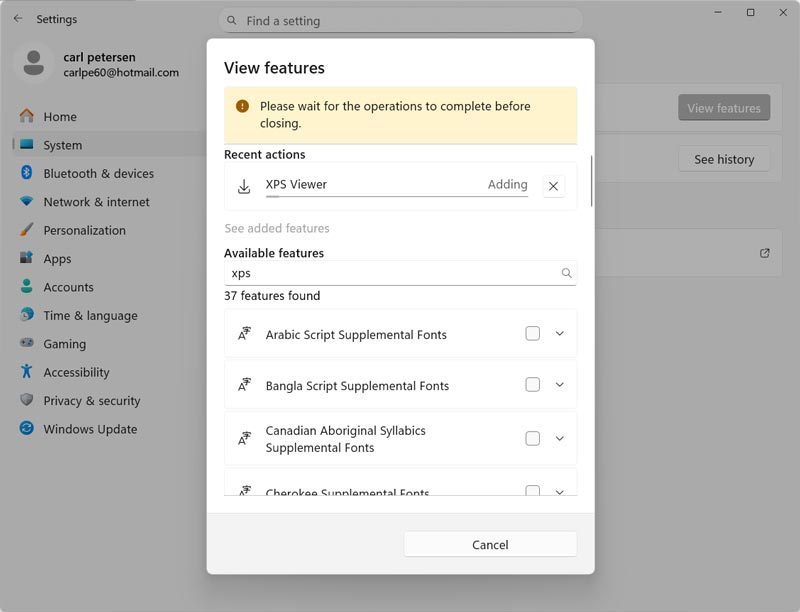
- Click the "Install" button. Wait for the install to finish and then restart the computer.
![]()
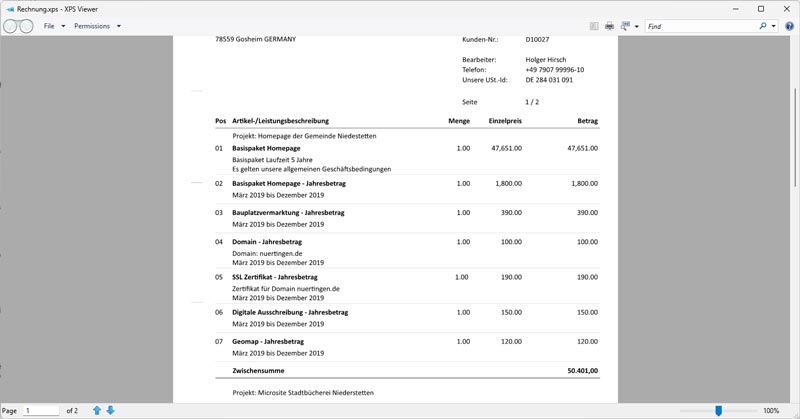
- After restart, just double-click and select to open the XPS file with XPS Viewer.
![]()
Mac
Unlike Windows, macOS does not have an integrated XPS viewer. To open an XPS file, you need special third-party software.
Okular (free)
Okular is the default document viewer for the KDE desktop environment. It is also available on macOS, Linux, and Windows. As a document reader, it can also read XPS files. In addition to XPS, you can also use Okular to read PDF, EPUB, DjVu, CHM, PostScript, CBR/CBZ comics, Markdown documents, and common image formats.
Here’s how to open an XPS file using Okular:
1. Install and open Okular.
2. Click Open Document to add the XPS files you need to open.
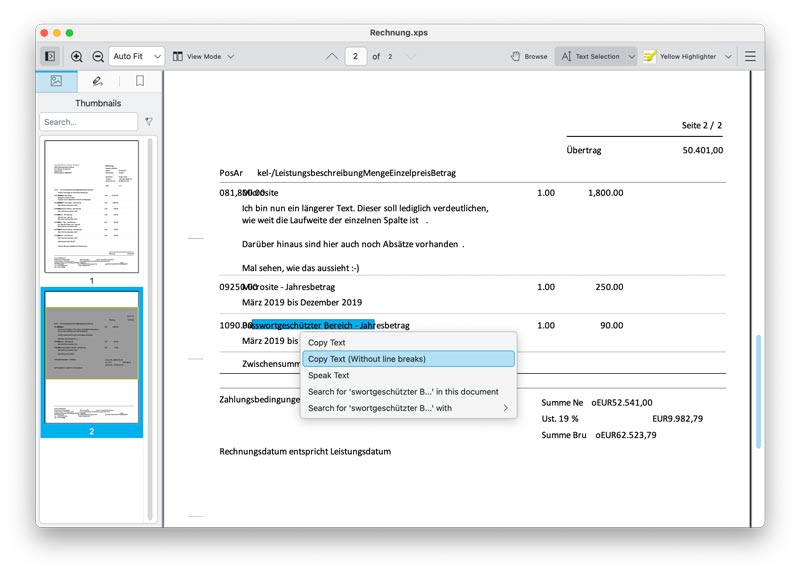
In our testing, Okular was able to open XPS files and supports opening multiple files at once via drag-and-drop. However, its compatibility with XPS is limited. Many files displayed layout issues, such as overlapping or compressed text, which affected readability. In addition, Okular failed to open most OXPS files.
On the positive side, Okular allows text selection and supports text-to-speech, making it usable for basic reading and accessibility needs despite its limitations.
Enolsoft XPS Viewer for Mac (paid, supports XPS/OXPS viewing and converting)
Enolsoft XPS Viewer for Mac is an XPS and OXPS viewer for Mac users to easily open and convert XPS & OXPS documents on Mac.
- Open and view XPS & OXPS files quickly and easily on Mac.
- Tab view to read multiple XPS & OXPS documents at a time.
- View XPS files with multiple-page display.
- Support text search, copy, Zoom-in, Zoom-out, Rotate, bookmark, etc.
- Convert XPS and OXPS files to PDF or images for reuse and editing.
Here’s how to open XPS files using Enolsoft XPS Viewer:
1. Download and install Enolsoft XPS Viewer from the offcial site or Mac App Store.
2. Click Open files to add one or multiple XPS/OXPS files.
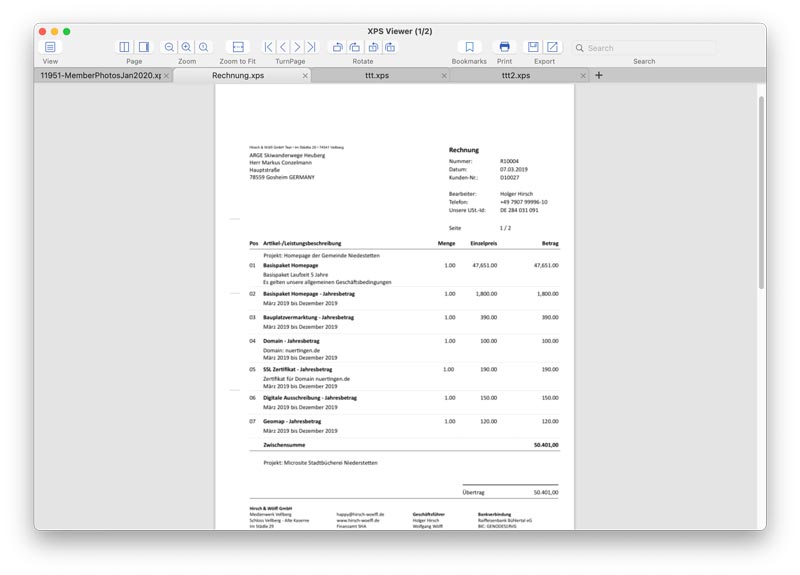
The thing I really liked about Enolsoft XPS Viewer is how straightforward it was. No lags, easy navigation, batch processing, the two-page mode, and zoom and search functions were super handy for large documents. When I need to convert XPS to PDF or images, it also enables it.
Mobile devices
- iOS: Apps like XPSView let you open and read XPS/OXPS files.
- Android: Search the Google Play Store for “XPS Viewer” to find apps that handle these attachments. One such app is XPS File Viewer & Converter.
Open XPS Online
There are also online services that allow you to view XPS files in your browser. A major advantage is that you don't need to install any software, and you can use the site to open XPS files on different operating systems and devices. There are many online XPS viewers available on the market, and they are generally easy to use; the two online sites we list below have a relatively clean interface and no ads or pop-ups.
However, in our test, both sites take a long time to load or process files, and as you need to upload files for viewing, you also need to consider the security and confidentiality of your data.
| Service Name | Features | Merit | Disadvantages |
| Aspose XPS file viewer online | Upload and open XPS files as images. | Free, no ads, no pop-ups, support both XPS and OXPS | File size limit, slow file processing |
| fviewer XPS viewer | Supports multiple formats | Free, no ads, no pop-ups | Slow file uploading and processing; some OXPS files will show as blank; failed to load large XPS files. |
How to Open an XPS File as a PDF
Since many recipients, especially Mac users, cannot open XPS files by default, converting XPS files to PDF is probably the best way of dealing with the initial demand.
On Windows
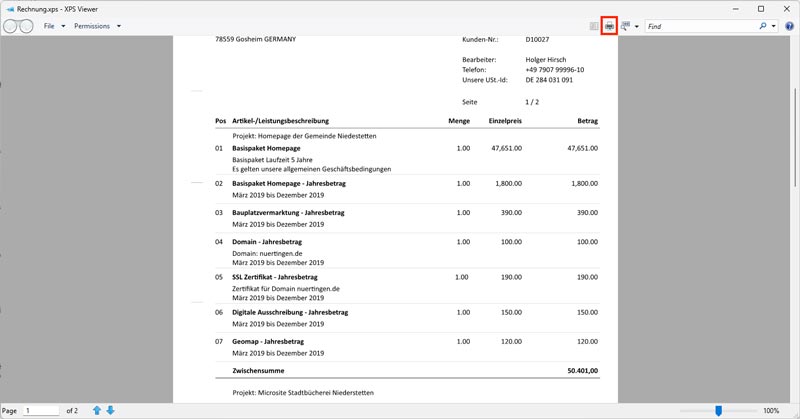
- Open the file in the XPS viewer.
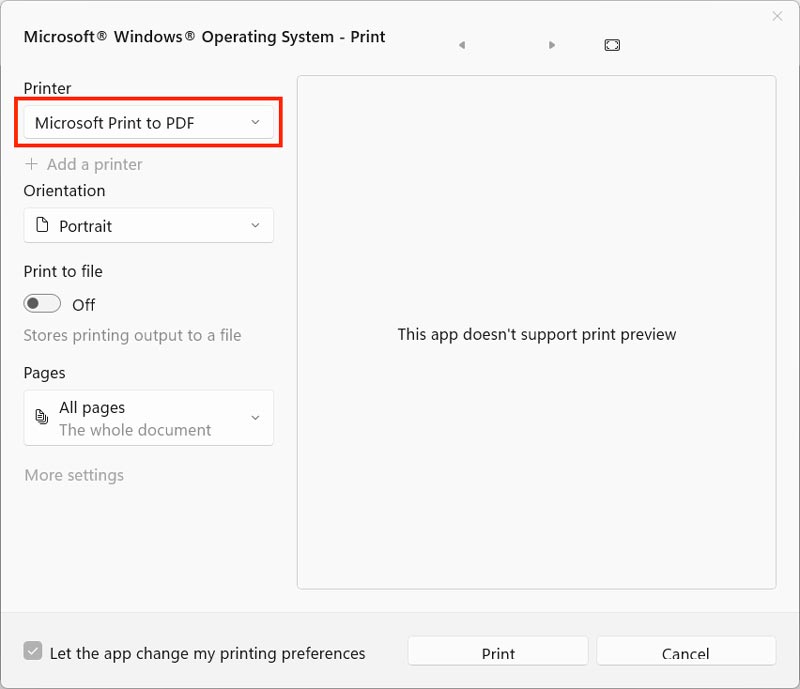
- Click Microsoft Print to PDF from the Print menu.
![]()
- Click the Print button to print.
![]()
- The new PDF should be placed where you want it.
On Mac
- Open the file in Enolsoft XPS Viewer for Mac.
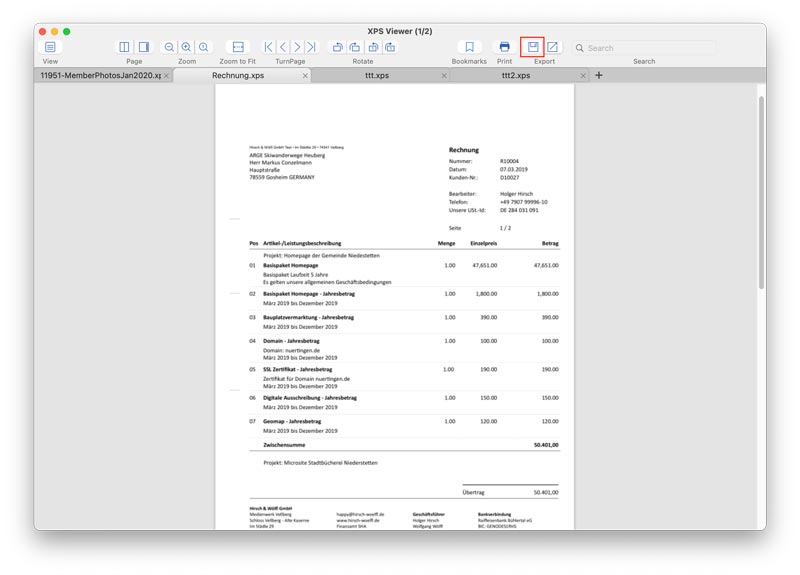
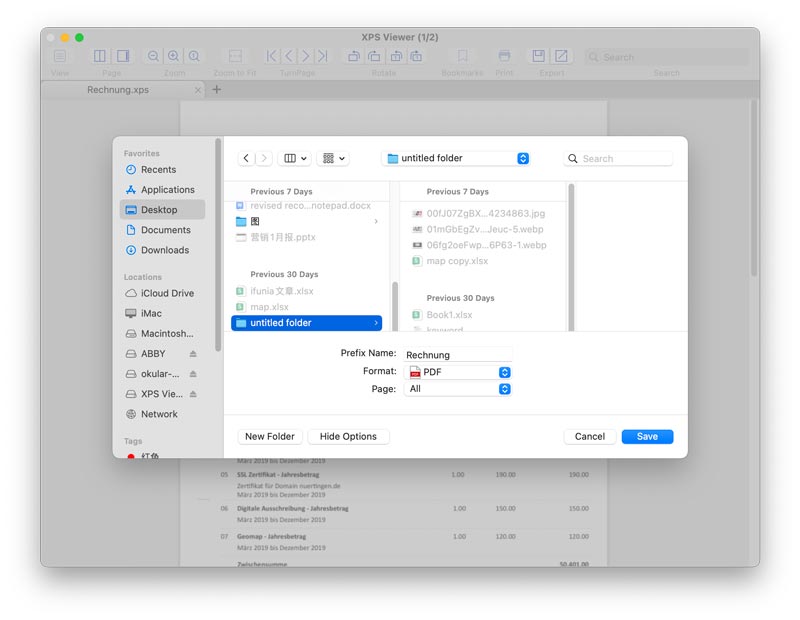
- In the toolbar, click the save button.
![]()
- Click Show Options and choose PDF as the output format.
![]()
How to Edit XPS Files
XPS files are designed more like a digital printout - ideal for sharing and printing, not something made for editing. Unlike PDF, there are almost no professional XPS editing programs available on the market. That said, in real-world situations, you may still need to make changes to the XPS file; the easiest solution we recommend is **not to edit them at all**. Instead, just convert it to PDF or text for further editing.
Summary
While the XPS file format isn't as widely used as other file formats, it remains highly practical in certain areas. There are many ways to open them, so there's no need to worry even if you're working with them for the first time.
In Windows, you can easily open XPS files using the Microsoft XPS Viewer; on Mac, you can use third-party software or online sites. There are also dedicated XPS viewers for Android and iOS. By choosing the appropriate method, you can conveniently view and convert XPS files, fully utilizing their advantages.

Bryan is the Chief Writer at Enolsoft for 15 years. He doesn’t just document software, he is more like a power user that bridges the gap between complex file management systems and the real people who use them, showing users the easiest way to turn digital chaos into streamlined efficiency.
Comments (0)
Leave a Reply