


Enolsoft Winmail Viewer User Guide




A Winmail.dat file is an email attachment generated by Microsoft Outlook or Exchange Server using the TNEF (Transport Neutral Encapsulation Format) protocol. Many email clients cannot open Winmail.dat files directly. This guide, we will walk you through how to read the content and extract attachments without Microsoft Outlook using Enolsoft Winmail Viewer.
Download & Install
For Mac
1. Download Enolsoft Winmail Viewer from the official website.
2. Open the .dmg file.
3. Drag the app icon into the Applications folder.
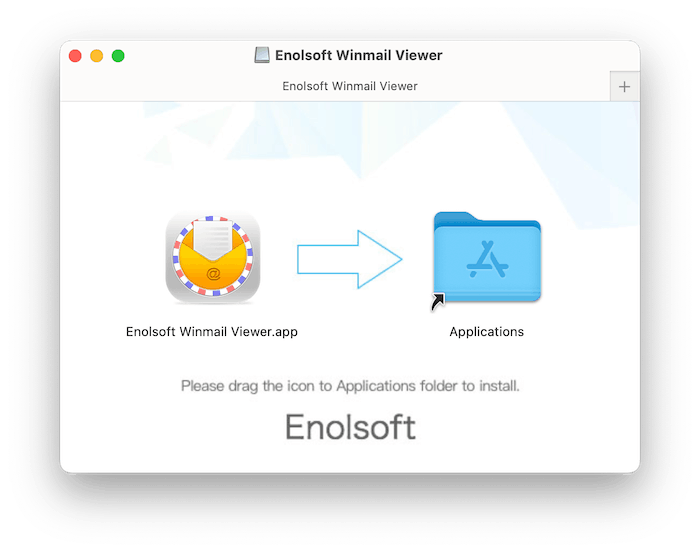
For Windows
1. Download the .exe installer.
2. Double-click the file to launch setup.
3. Follow the installation wizard and click Install.
Activation
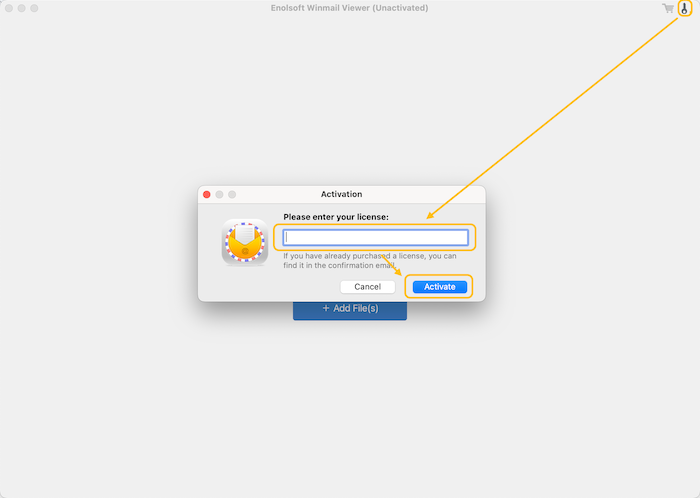
To unlock full features:
1. Launch the app from Applications or Start Menu.
2. Click the key icon in the top-right corner.
3. Enter your license key and click Activate.
Open Winmail.dat Files
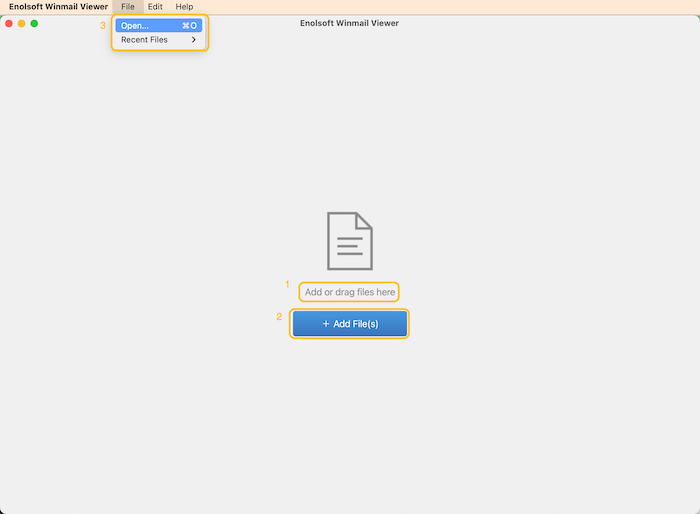
You can open DjVu files in multiple ways:
1. Drag and drop files into the app window
2. Click 
3. Click File> Open or Press Cmd + O (for Mac only)
View Email Content
After opening a Winmail.dat file, Enolsoft Winmail Viewer automatically displays the message content.
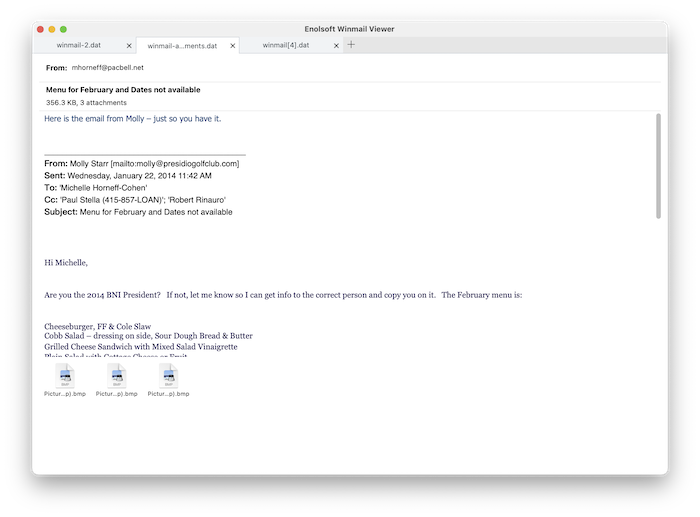
You can:
Switch beween opened tabs;
Scroll through long messages;
Enter full screen mode
Manage Attachments
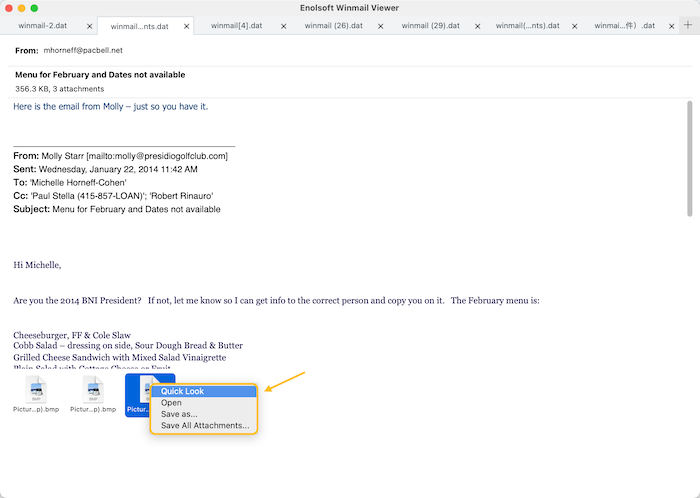
All attachments contained within the Winmail.dat package are listed in the application, regardless of file type, including PDF, Images, Videos, Audios, Archives and other common files.
Preview Attachments
You can preview those attachments to confirm extrac them or not. There are two methods to preview those attachments:
1. Quick-Look (for Mac only)
Right click an attachment and choose "Quick-Look", you are able to preview the file content.
2. Open
Right click an attachment and choose "Open", the selected file opens in its associated macOS/Windows OS application.
Extract Attachments
You can also extract attachments from a Winmail.dat file for further editing or sharing.
1. Extract specific attachments
Hold on CMD(for Mac) or CTRL(for Windows) and click to select the specific attachments, right click and choose "Save as", you can extract those selected attachments and save them to a destination folder.
2. Extract all attachments with one click
Right click one of the attachments and choose "Save All Attachments", you can directly export all attachments from this Winmail.dat file.
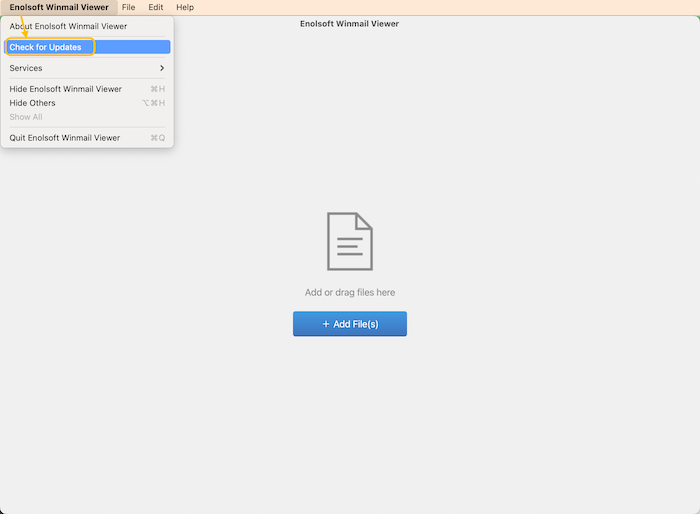
Update Enolsoft Winmail Viewer
Keeping the application updated ensures compatibility with the latest OS versions and file formats.
When you launch Enolsoft DjVu Viewer, Enolsoft will auto check for updates.
Also, you can click Enolsoft DjVu Viewer > Check for Updates… on the top menu bar to manually update it.

Bryan is the Chief Writer at Enolsoft for 15 years. He doesn’t just document software, he is more like a power user that bridges the gap between complex file management systems and the real people who use them, showing users the easiest way to turn digital chaos into streamlined efficiency.
Comments (0)
Leave a Reply