


Enolsoft Visio Viewer User Guide




Enolsoft Visio Viewer is a simple and efficient tool designed to help you open and view Microsoft Visio files on your Mac without installing Microsoft Visio. It supports commonly used Visio formats, including VSD, VSDX, and VDX, allowing you to access diagrams quickly and easily. In this guide, we will walk you through all the features of Enolsoft Visio Viewer.
Download & Install
1. You can download the installation package of Enolsoft Visio Viewer for Mac from the below link.
2. Install Enolsoft Visio Viewer with the downloaded package.
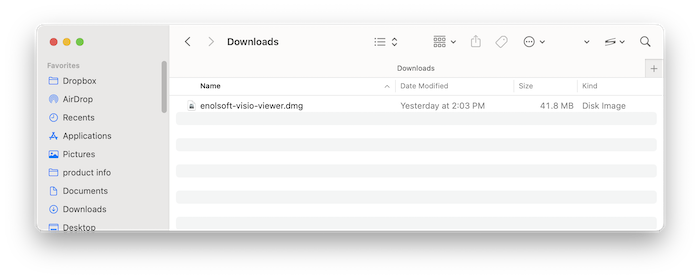
Double-click the .dmg file
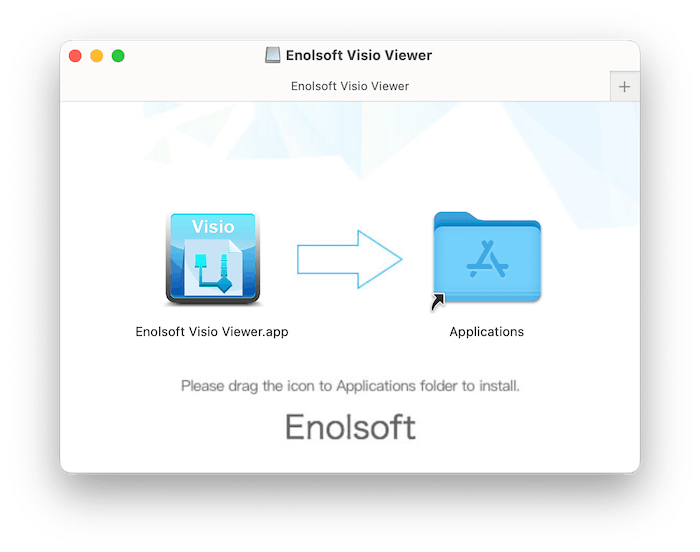
Drag the Enolsoft Visio Viewer icon to Applications folder.
Activation
After installing the program, you need to activate the program if you want to use the full version features.
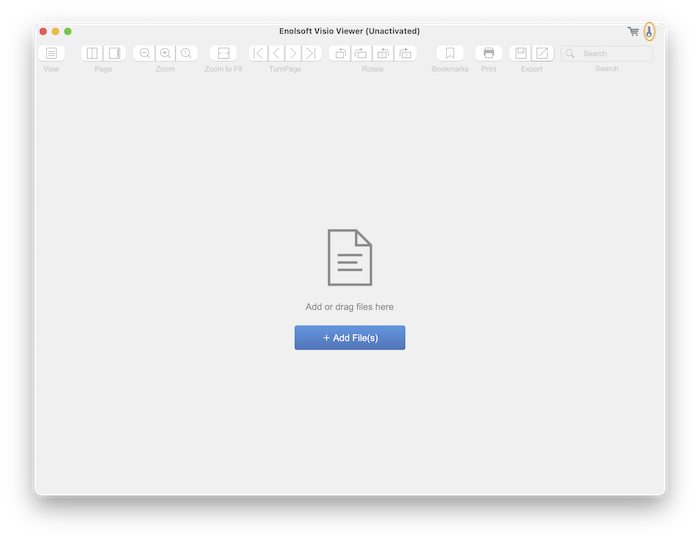
1. Go to Lauchpad or Applications folder, double click Enolsoft Visio Viewer to run the program, and then click the key icon at the top right corner.
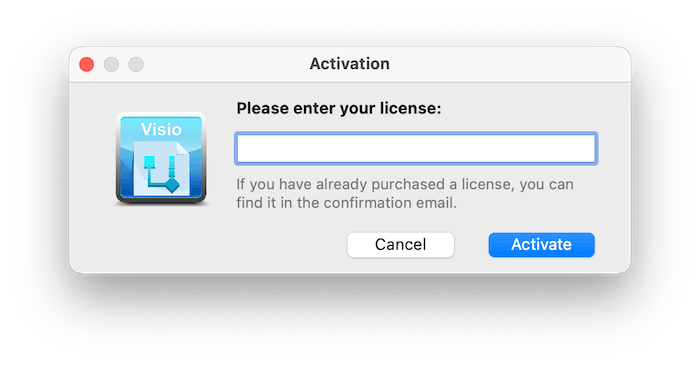
2. Copy-n-paste the license code into the popped-up window, click Activate.
Open Visio Files
With Enolsoft Visio Viewer, you can browse multiple files, switch between pages, zoom in or out for details, and navigate complex diagrams smoothly. Whether you need to review technical drawings, flowcharts, or network diagrams, it provides a convenient way to view your Visio files with accuracy and clarity.
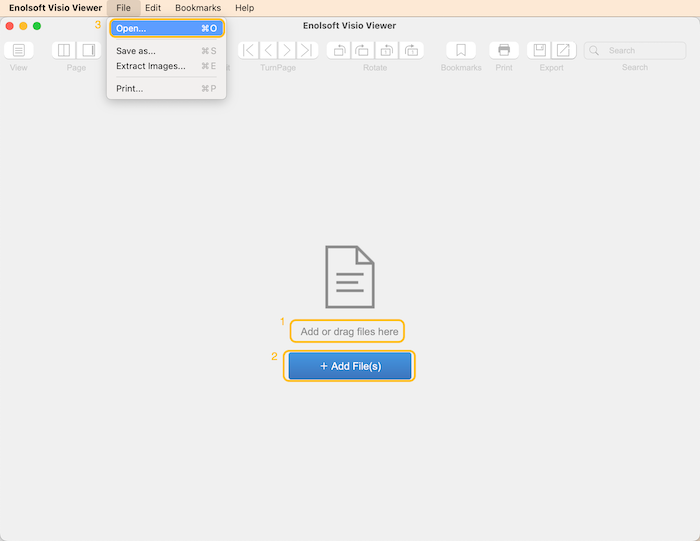
Run Enolsoft Visio Viewer, you can open Visio files with several ways:
1. Simply drag and drop Visio files into the program.
2. Click  , select the target Visio files and open them.
3. Click File> Open on the top menu bar or press shortcut keys CMD+O, and then choose the target Visio files to open.
Tips: You can open multiple Visio files at once, with each file in its own tab. Simply click the tabs to switch between files.
Visio Viewing Modes
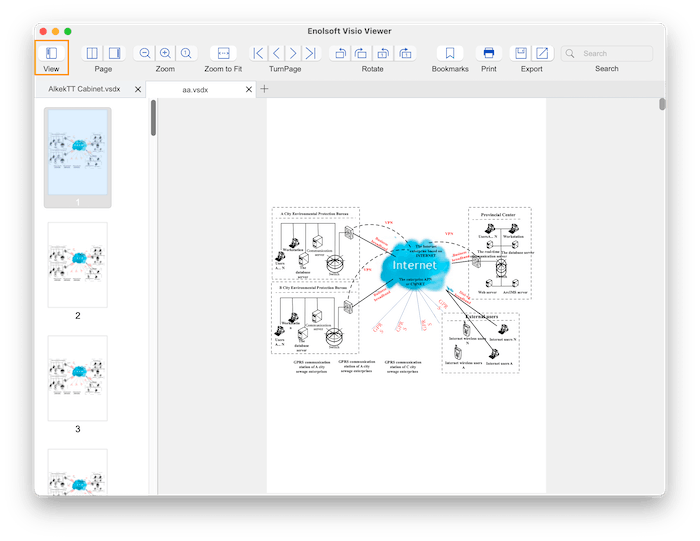
Enolsoft Visio Viewer provides flexible viewing modes to improve how you read and compare diagrams. After opening the Visio file, you can view the file content with/without thumbnail, page by page or two pages.
Thumbnail View
Click  , it enables the thumbnail view and displays thumbnails of all the pages on the left panel, it is easier to jump to the target page using page thumbnails . If you want to disable it, just click
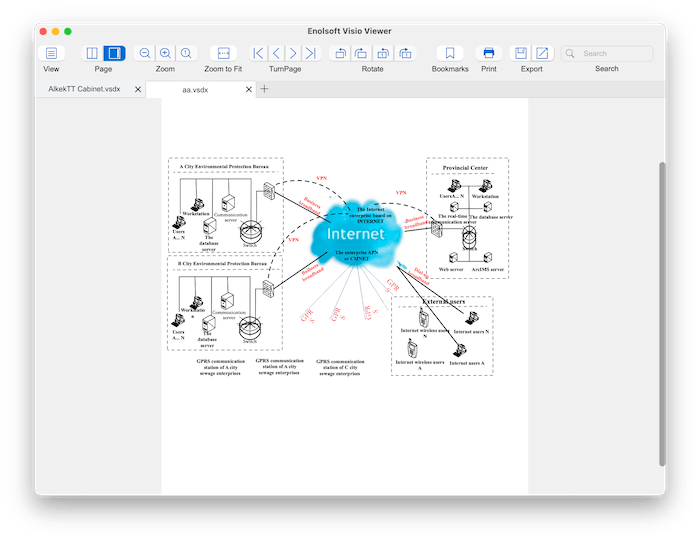
View Page by Page
You can click  to enable the Page by Page view mode, which will display single page at a time. It is ideal for focused reading and detailed inspection.
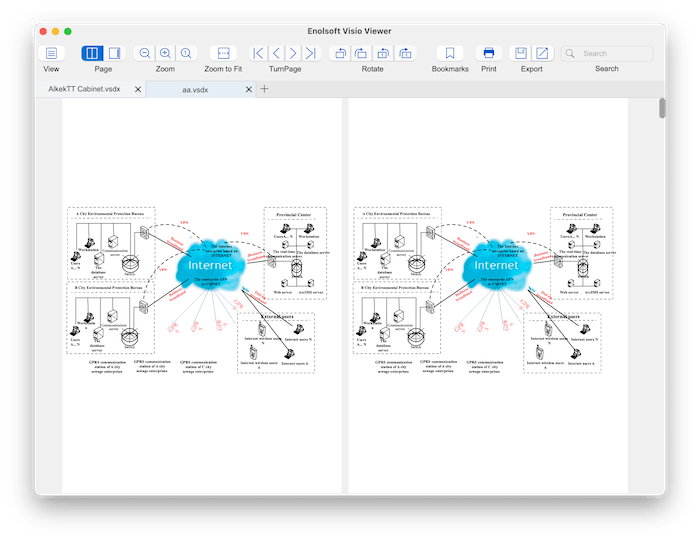
View Two Pages
You can click  to enable Two Pages view mode, which display two pages side by side. It is useful for comparing diagrams or reviewing multi-page layouts.
Zoom, Rotate and Navigation Tools
Zoom and Fit
You can Zoom Out/In by clicking the toolbar buttons 
Click  for 100% view the actual size.
Click  to display the entire page.
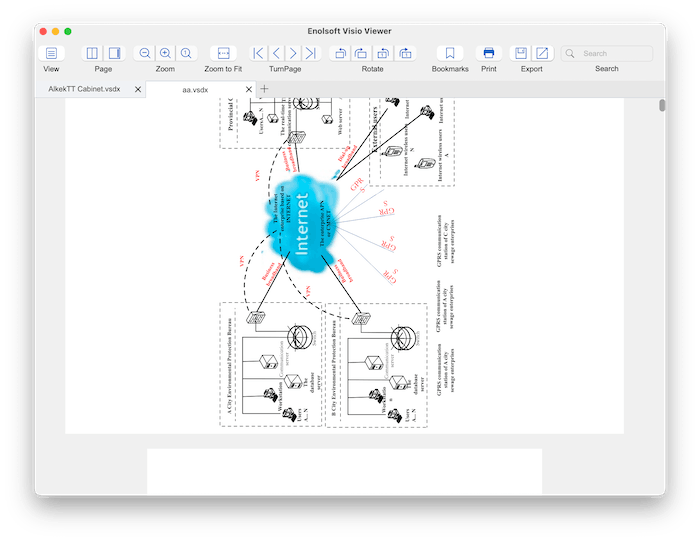
Rotate View
You can rotate all pages or a single page clockwise or counterclockwise using the corresponding buttons  for improved readability.
Navigate Pages
Besides navigating pages via thumbnails, you can use First Page/Previous Page/Next Page/Last Page buttons  to quickly jumpt to the target pages.
Search Texts in Visio Files
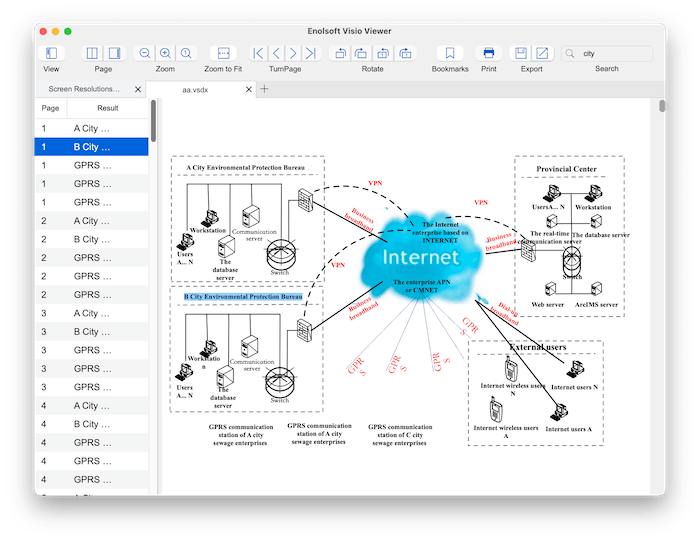
You can enter keywords in the search bar to quickly find match content from your Visio file. All the content that containing the keywords will be listed on the left panel, choose it on the list and the corresponding content will be highlighted and displayed on the right side.
Add and Manage Bookmarks in Visio
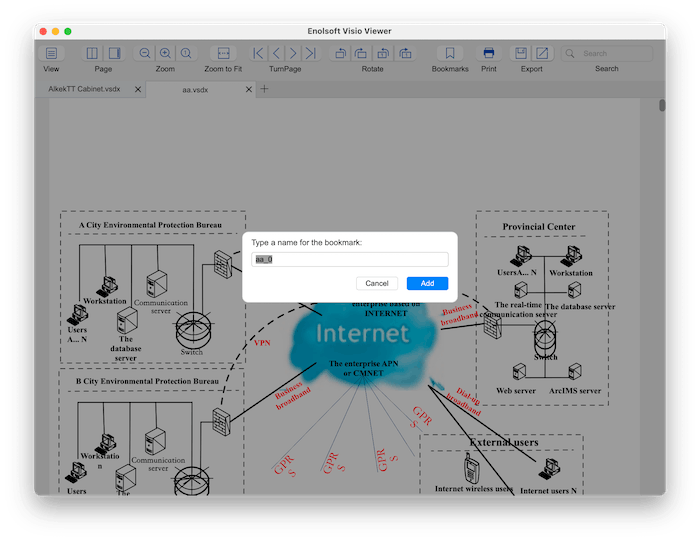
You can also add bookmarks to important pages of your Visio file, so that you can quickly return to those pages.
Just click  when it scroll to the target page, fill a name for this bookmark.
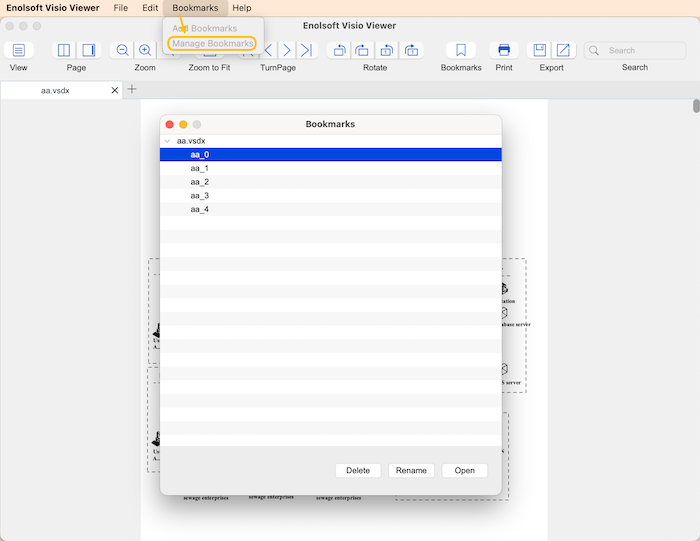
Click Bookmarks> Manage Bookmarks on the top menu bar, you can navigate to any bookmarked page, rename or delete the bookmarks.
Print Visio Documents
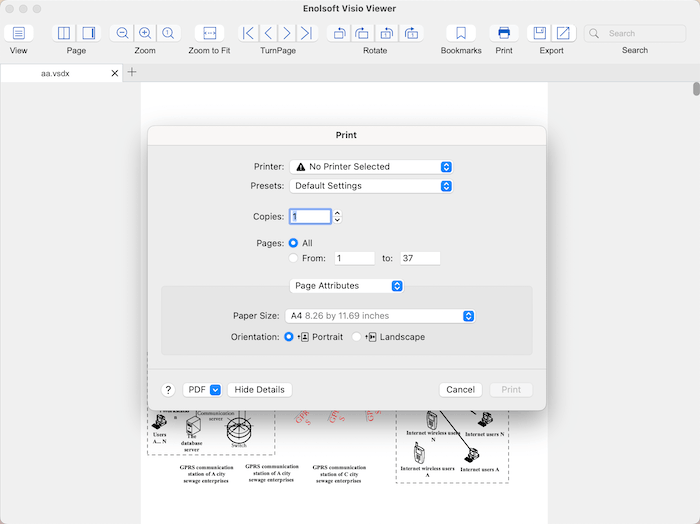
You can directly print Visio diagrams as you like. Just click  on the tool bar, you can change the print settings, including copies, page range, page size and orientation.
Export to PDF and Extract images from Visio
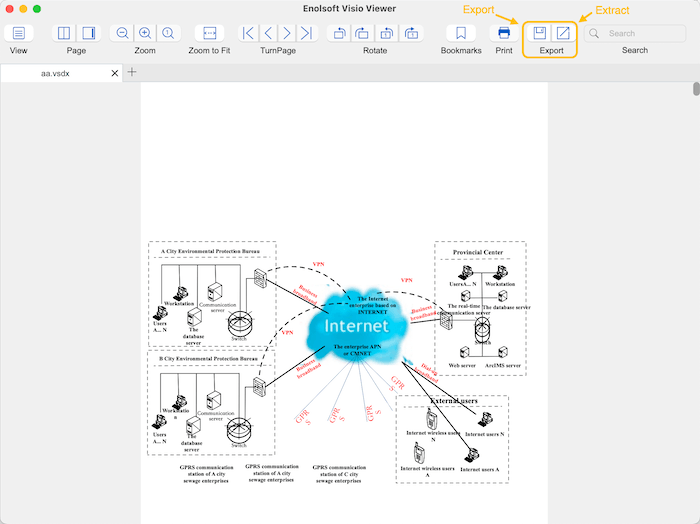
Enolsoft Visio Viewer supports exporting Visio files to PDF for easy sharing, it also supports extracting all images from Visio file in one click.
Export to PDF: Click  , choose a directory to save the exported PDF and click Save.
Extract images: Click  , choose a directory to save the extracted .png images and click Open.
Update Enolsoft Visio Viewer
We always suggest users use the latest version of the program.
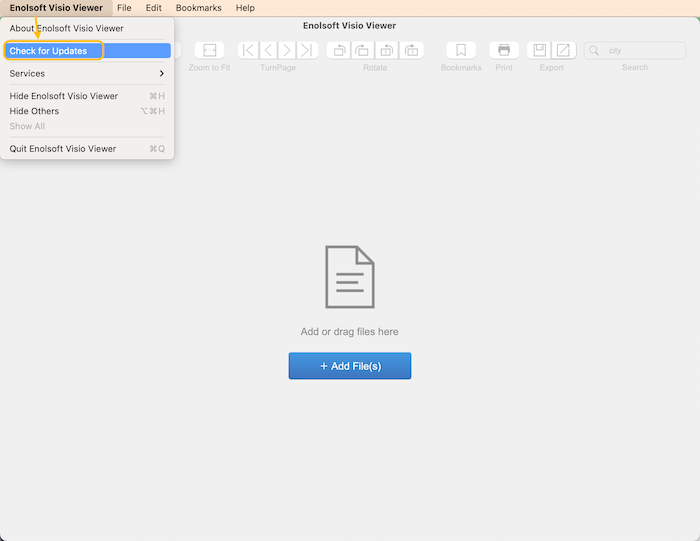
When you launch Enolsoft Visio Viewer, Enolsoft will auto check for updates.
Also, you can click Enolsoft Visio Viewer > Check for Updates… on the left top menu bar to manually update it.

Bryan is the Chief Writer at Enolsoft for 15 years. He doesn’t just document software, he is more like a power user that bridges the gap between complex file management systems and the real people who use them, showing users the easiest way to turn digital chaos into streamlined efficiency.
Comments (0)
Leave a Reply