


Enolsoft PST Viewer User Guide




Enolsoft PST Viewer is a powerful tool that lets you open PST files without Microsoft Outlook, browse mailbox data, and convert or export PST content on Mac and Windows.
Download & Install
For Mac Version
1. You can download the installation package of Enolsoft PST Viewer for Mac from the below link.
2. Install Enolsoft PST Viewer with the downloaded package.
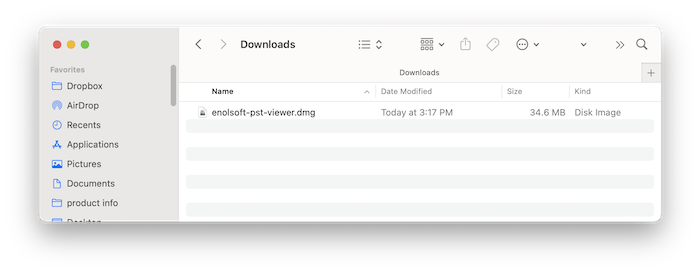
Double-click the .dmg file.
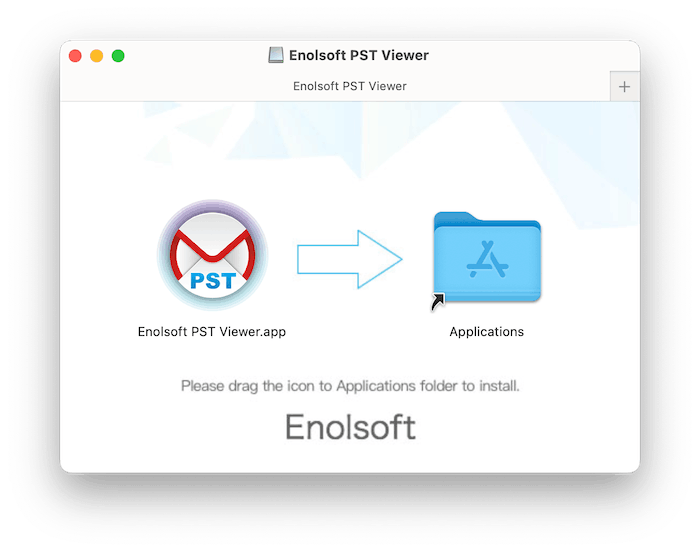
Drag the Enolsoft PST Viewer icon to Applications folder.
For Windows version
1. You can download the installation package of Enolsoft DXF Viewer for Windows from the below link.
2. Install Enolsoft PST Viewer with the downloaded package.
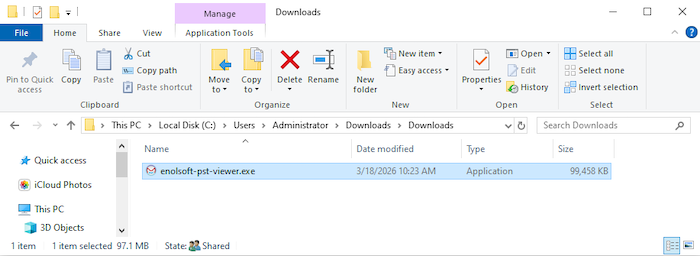
Double-click the .exe file to run it.
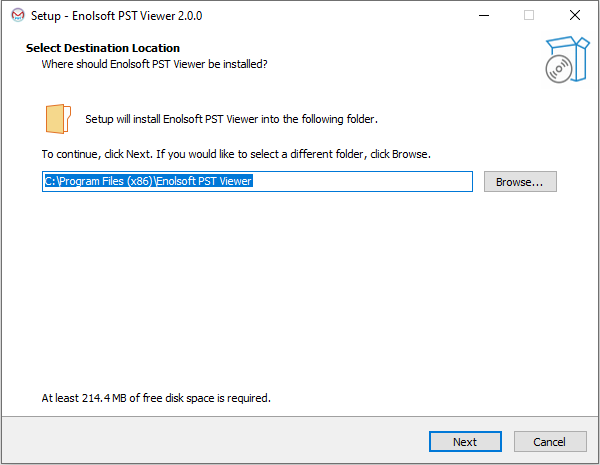
Select a directory to install the program
Click Next > Next > Install to continue the installation process, when the below window appears, it means that the program has been installed successfully.
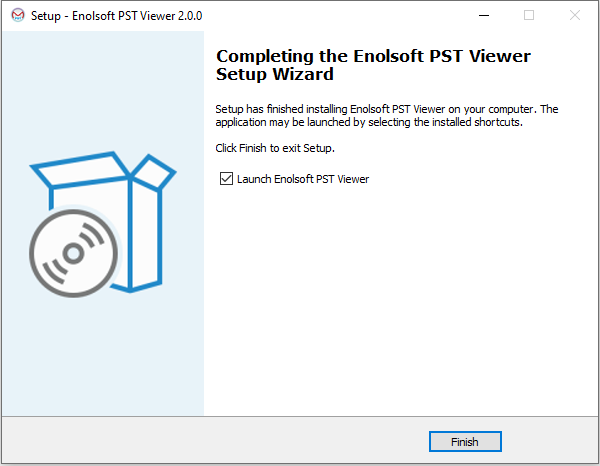
Activation
After installing the program, you need to activate the program if you want to use the full version features.
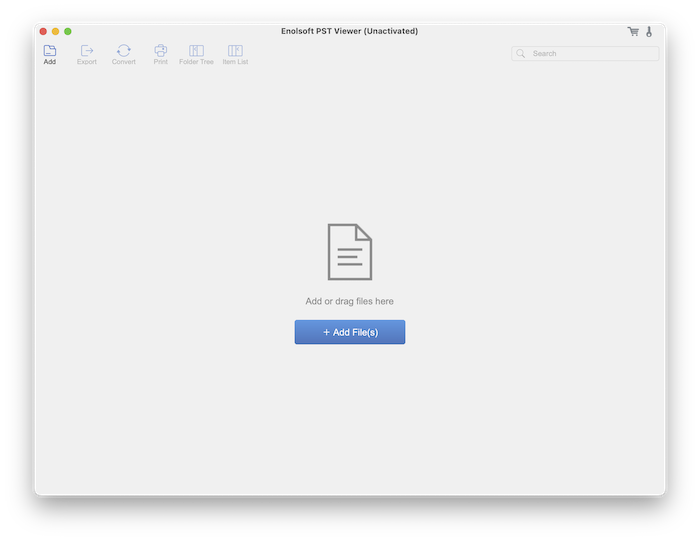
1. Go to Lauchpad or Applications folder, double click Enolsoft PST Viewer to run the program, and then click the key icon at the top right corner.
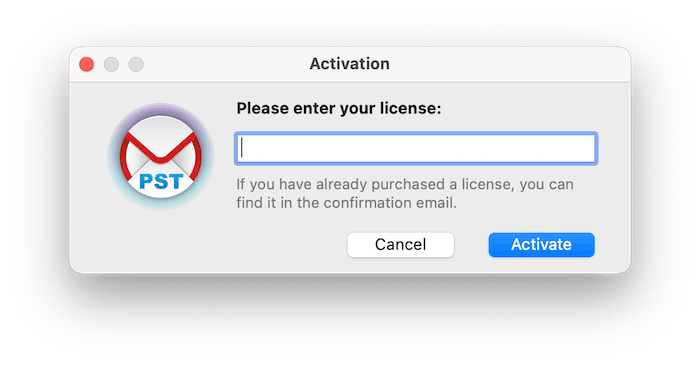
2. Copy-n-paste the license code into the popped-up window, click Activate.
Open PST Files without Outlook
Want to view PST files but without a Microsoft Outlook? Try to open PST files with Enolsoft PST Viewer, which is a lightweight but powerful tool to view, convert and manage PST files.
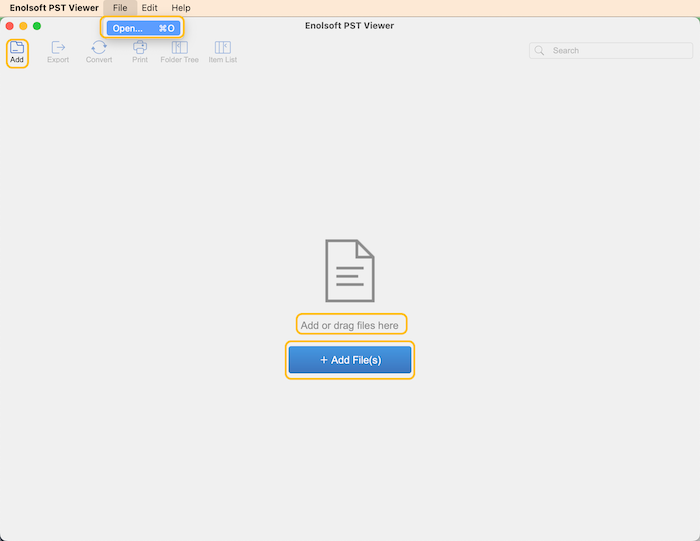
Launch PST Viewer, you can open PST files with several ways:
1. Directly drag and drop the PST files into the program.
2. Click  or
or  and then select the target PST files to open.
3. Click File> Open or directly press Command+O and select the target PST files to open.
View & Browse PST Mailbox Data
After adding PST files, they will be listed on the left panel, you can unfold them to view the PST file's content, including mails, calendar, contacts, notes ,etc.
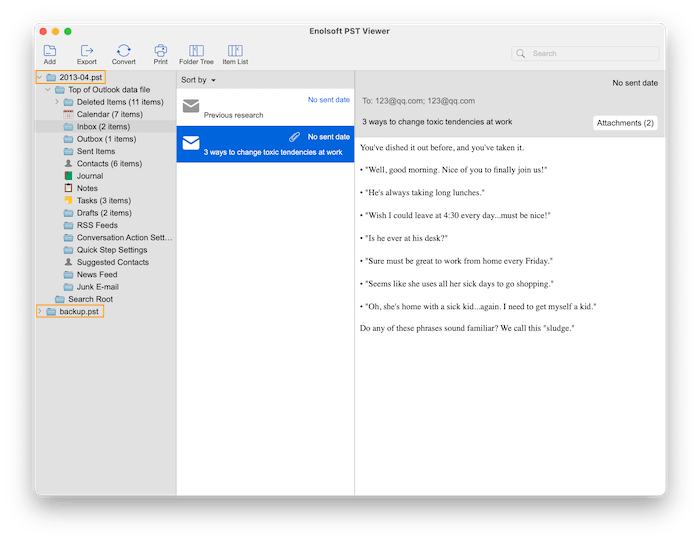
 :You can click it to hide or show the list of PST files on the left panel.
 : You can click it to hide or show the list of content overviews on the middle panel.
 Global Search: You can search for keywords across all folders in one or multiple PST files to quickly find matching emails, contacts, attachments, and more.
View & Extract PST Attachments
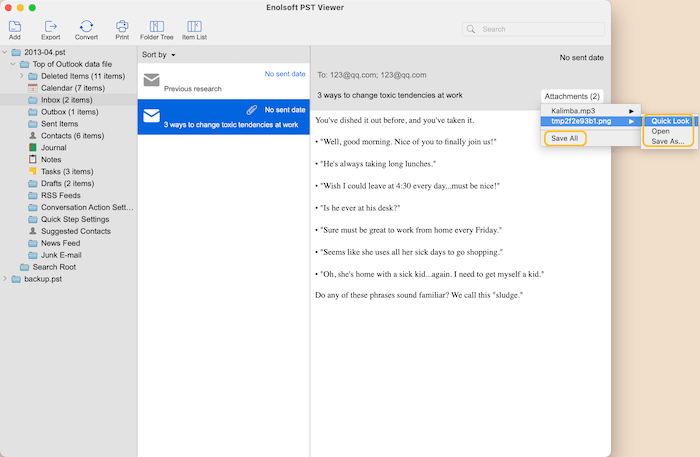
You can directly find the attachments in email, click it and choose the file to fast view, open or export it. You can also directly export all attahcments in a click.
Convert PST Files to Other Formats
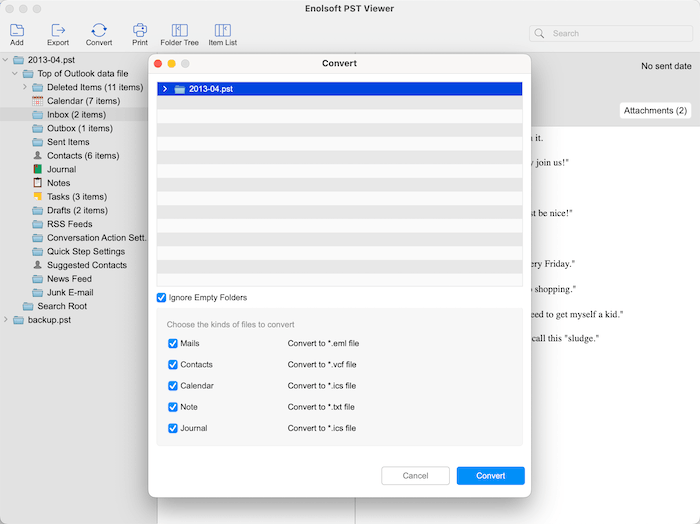
Enolsoft PST Viewer also supports converting different content from PST files to other formats, like converting Mails to .eml, Contacts to .vcf, Calendar and Journal to .ics and Note to .txt.
Just highlight the target PST file on the left panel, click  Tick the content that you want to convert and then click the Convert button.
Export PST Data to Mac Apps
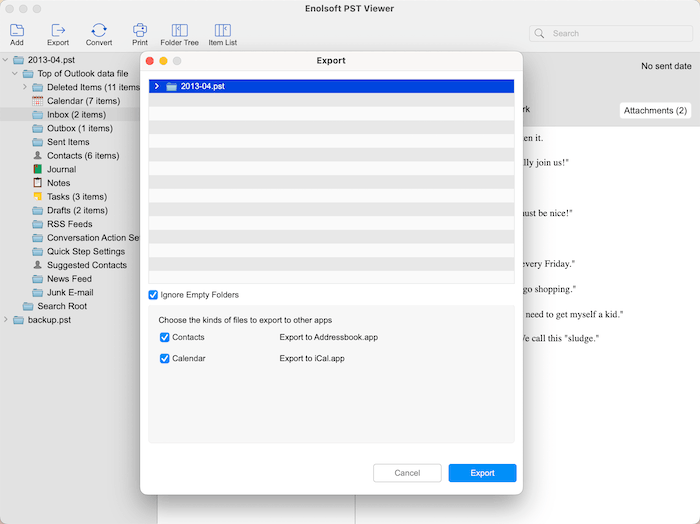
You can directly export contacts to the Addressbook app and export calendar to the iCal app.
Hihglight the target PST file on the left panel, click  , tick the option of files that you want to export and click the Export button.
Print PST Emails & Content
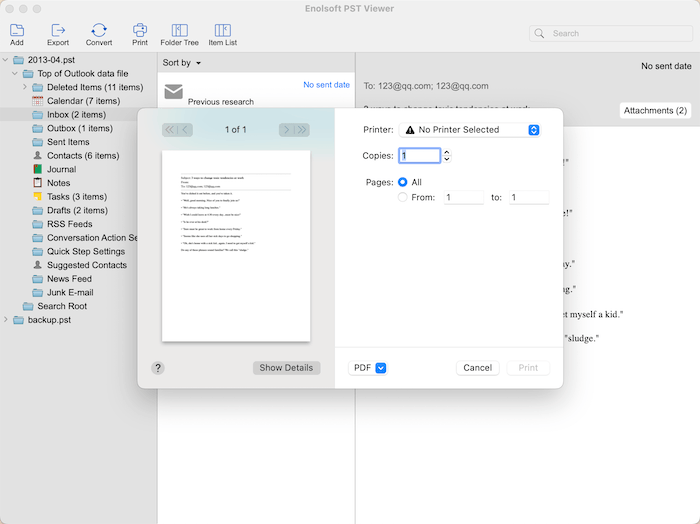
Enolsoft PST Viewer allows users to directly print the content you need from PST files, just highlight the content and click 
Update Enolsoft PST Viewer
We always suggest users use the latest version of the program.
When you launch Enolsoft PST Viewer, Enolsoft will auto check for updates.
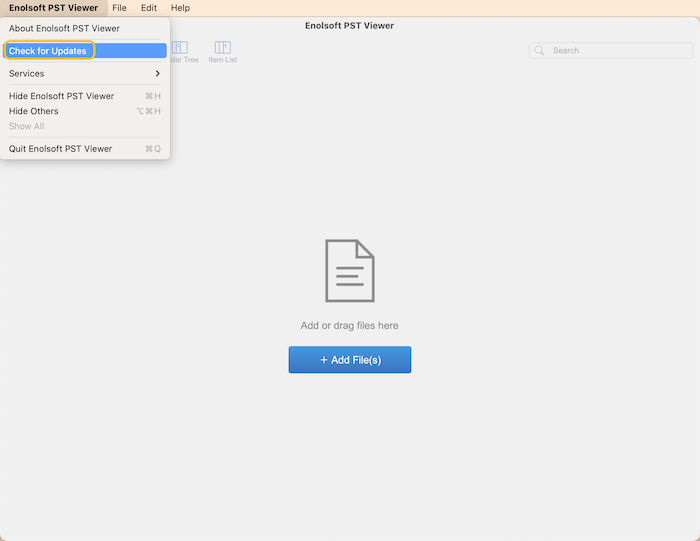
Also, you can click Enolsoft PST Viewer > Check for Updates… on the left top menu bar to manually update it.

Bryan is the Chief Writer at Enolsoft for 15 years. He doesn’t just document software, he is more like a power user that bridges the gap between complex file management systems and the real people who use them, showing users the easiest way to turn digital chaos into streamlined efficiency.
Comments (0)
Leave a Reply