


How to Open DWG Files on Mac (Free DWG Viewers for macOS)




If you received a .dwg file on your Mac, you’ve probably discovered that macOS doesn’t support them natively.
- ❌ macOS does not support DWG files natively in Quick Look or Preview
- ❌ Autodesk’s free DWG TrueView is Windows-only
- ❌ AutoCAD for Mac requires an expensive subscription and is overkill for just viewing
- ❌ Many DWG viewers are online-only which cause privacy concerns or law related aspects
- ❌ Many DWG viewers can’t export / print properly
- ❌ Free DWG tools are either lagging (slow) or the UI is not intuitive
- ❌ Some tools only support older version DWG files, for newer one it will just generates a blank page
In this guide, we’ll show you the best free DWG viewers for Mac that are more lightweight to open, view, and modify DWG files with smooth performance.
Quick Answer: How to Open a DWG File on Mac
- Use an online DWG viewer - Fastest, no install: Upload the file to Autodesk Viewer (web) to view DWG in Safari/Chrome (only support viewing)
- If you need editing: Use AutoCAD Web - free for viewing, offer professional editing with 30 days free trial
- Best free desktop option: Install QCAD or LibreCAD (good for basic 2D DWG/DXF workflows, open DXF more reliably than DWG)
- If your goal is just checking a few dimensions or pass the design to a collaborator rather than CAD editing, eDrawings Viewer or Enolsoft DWG viewer from Mac App Store is the lightweight and straitforward option
The DWG TrueView for Mac Myth
Note that AutoCAD's DWG TrueView for Mac is not available, Autodesk does **not** offer a desktop version of *DWG TrueView* for Mac, if you see infomation that promising DWG TrueView for Mac, it is likely a Windows-only file or unsafe. The best free official alternative is Autodesk Web Viewer.
The only way to use DWG TrueView on Mac is to use virtualization software such as Parallels Desktop or VMware Fusion to run Windows and DWG TrueView on your Mac. But we don't recommend it when the following DWG viewers are available.
Mac App Store DWG File Viewer
- Available on the Mac App Store, after downloading, you can open your DWG file by double-clicking it.
- Typically support: Zoom, layers, basic measurement, No editing.
Best for:
- Students or casual users who need to view and sharing files
Not ideal for:
- Engineers working with complex CAD drawings
eDrawings Viewer - DWG viewer that supports 3D models on Mac
Best For: You need to view 2D & 3D drawings, leave comments, or share with teammates
eDrawings Viewer is a free DWG reader provided by SolidWorks. It enables anyone to quickly and easily view, print, and review eDrawings, SOLIDWORKS®, and AutoCAD® DWG and DXF files. It supports both 2D and 3D CAD files and offers features like measuring dimensions and creating markups. You can download it from the Mac App Store.
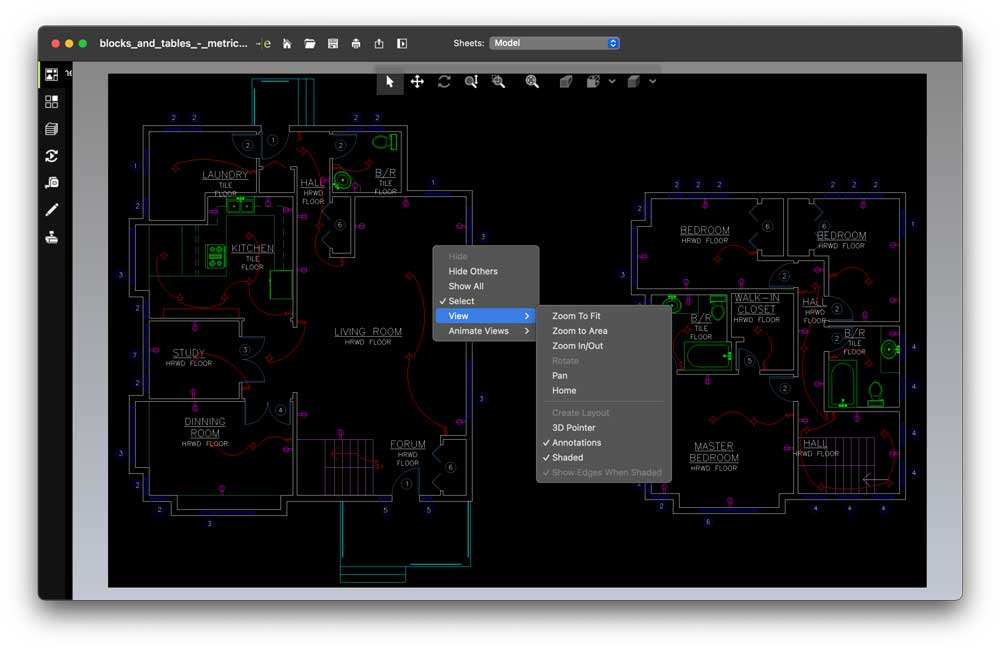
Pros:
- Open different types of files: Files created in Creo (Pro/ ENGINEER), CATIA, Autodesk Inventor, and also manufacturing files like 3D printer “STL” files, 2D DXF/DWG drawing files, and 3D manufacturing formats, “STEP” and “IGES”.
- It is available for Windows, Macintosh, and mobile devices for true cross-platform design collaboration and communication.
- You can load and send files via email to share product design information and collaborate more effectively with everyone involved in product development.
- Simple and intuitive interface.
- Zoom, pan and rotate your 2D or 3D CAD data.
- Measure, MarkUp and Section functionality.
- View in full screen or fit it on screen.
- Free to download from the Mac App Store.
Cons:
- No editing tools.
- The print function is not stable, often crashes when click print.
- When the print works, the PDF it generate is unreadble with font and layout change.
- Unable to open some legacy DWG files.
- For some DWG files it loads very slow and have to wait more than 3 seconds between every interaction.
- Contantly freezes when opening large files.
- Sometimes the double click file opening will cause the program to crash.
- Have difficult rendering complex DWG files with multiple layers or custom fonts.
Enolsoft DXF Viewer - Lightweight DWG viewer for quick access
Best For: A fast and easy to use app for DWG viewing, simple measurement and converting on Mac
Enolsoft DXF Viewer is a lightweight, free and fast viewer specifically designed for viewing AutoCAD DWG/DXF files. It allows you to view, measure, and print DWG files easily. Moreover, it enables you to convert DWG to PDF or image formats which is ideal for quick previews or sharing drawings with clients and colleagues who don’t need to make changes. You can download it from the official website or Mac App Store.
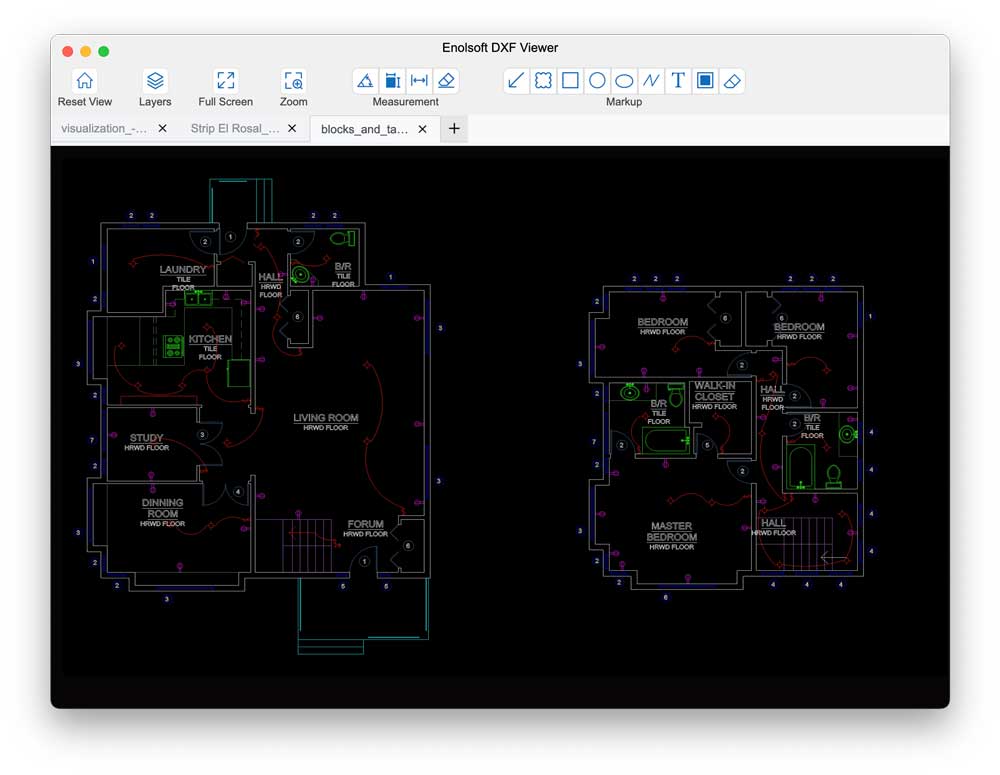
Pros:
- Open and view DWG and DXF files without AutoCAD.
- Precise zoom and measurement functions for technical drawings.
- Supports layer view and easy navigation in complex drawings.
- A lightweight solution that won't lag your macOS.
- Quick opening speed(opening 5MB+ files in seconds).
- Print drawings accurately.
- Convert DWG to PDF (for sharing/printing).
- Run faster than most CAD software.
Cons:
- No editing tools.
- Unable to open some legacy DWG files.
- Lack of advanced features like 3D modeling, parametric design, etc.
The Professional Choice: Autodesk's Official Tools
The official and feature-rich option, especially if you work with CAD files regularly.
AutoCAD Web App - Best for editing DWG
Best for - If need full professional DWG editing on Mac or work with them frequently
Price: Free for viewing, editing requires a paid subscription(Free 30-day trial, then paid)
AutoCAD web app is the browser-based version of the official AutoCAD software. Like with all Autodesk web-based apps, you will need to be signed into your Autodesk Account and then upload your DWG from your local drive or network drive.
It allows you to use views and properties in your DWG files in the same way as you would in the AutoCAD desktop app. You have Modelspace (Model) and Paperspace (Layout), you can alter your object properties and work with layers. After all the work you can also saving your drawings to the cloud for sharing.
If you're dealing with very large or complex files (e.g., architectural/engineering), or you need to edit DWG files, Autodesk web app usually performs best.
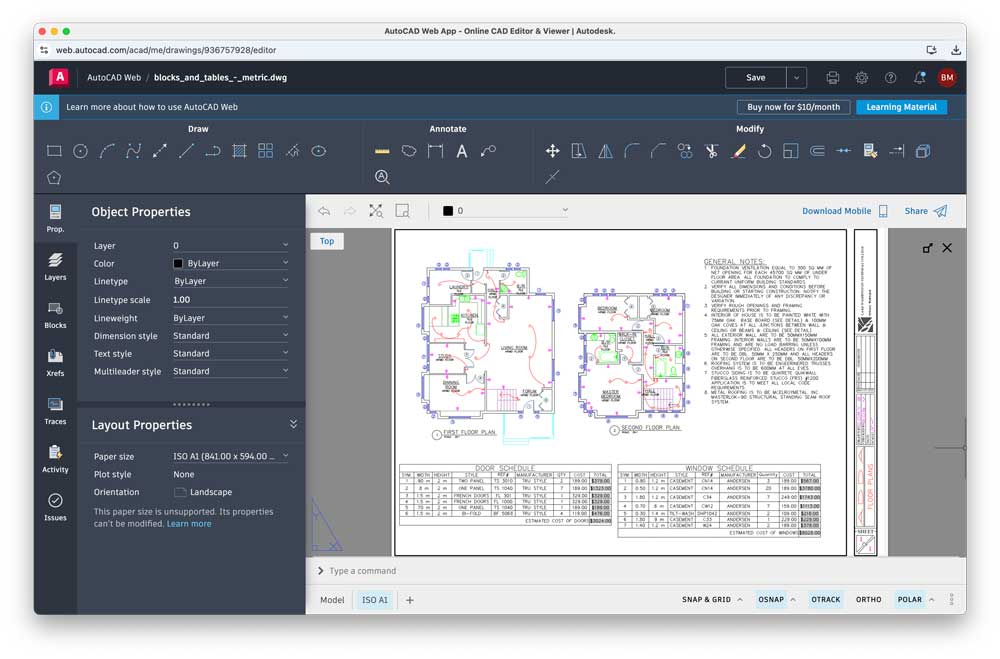
Pros:
- Native CAD Software, most accurate rendering, industry standard.
- 2D and 3D Capabilities.
- Easily switched on/off a layer, lock layer, changing layer color, creating a new layer, setting the current drafting layer.
- Various view controls and keyboard entry shortcuts.
- Undo and Redo.
- Zoom extents and zoom window.
- Saving your drawings to the cloud.
- Full DWG editing toolset - Drafting, Line, Polyline, Circle, Arc, Rectangle, Modify, Move, Fillet(zero radius), Extend, Trim, Mirror, Copy, Offset, Rotate, Scale, Matchprop, Annotate, Mtext, DIM or Linear/Aligned, Angular, Baseline, Continue, etc.
- Industry standard, no formatting issues.
- Supports advanced modeling and visualization tools, making it suitable for a variety of design tasks.
- Easily integrate AutoCAD with other Autodesk applications.
Cons:
- No Freeze/Thaw functionality.
- Expensive, heavy.
- Requires a stable internet connection to work.
Autodesk Viewer - Official Method to Free Open dwg Files online
Best for: If you prefer a quick, no-install solution
To simply open a DWG file on a Mac, the most effective method is using Autodesk Viewer. It's free, requires no installation, and works directly in your browser — just upload and view.
Compared with AutoCAD web app, Autodesk Viewer is view-only - you can pan, zoom, measuring, and annotating DWG files , but you can't edit it.
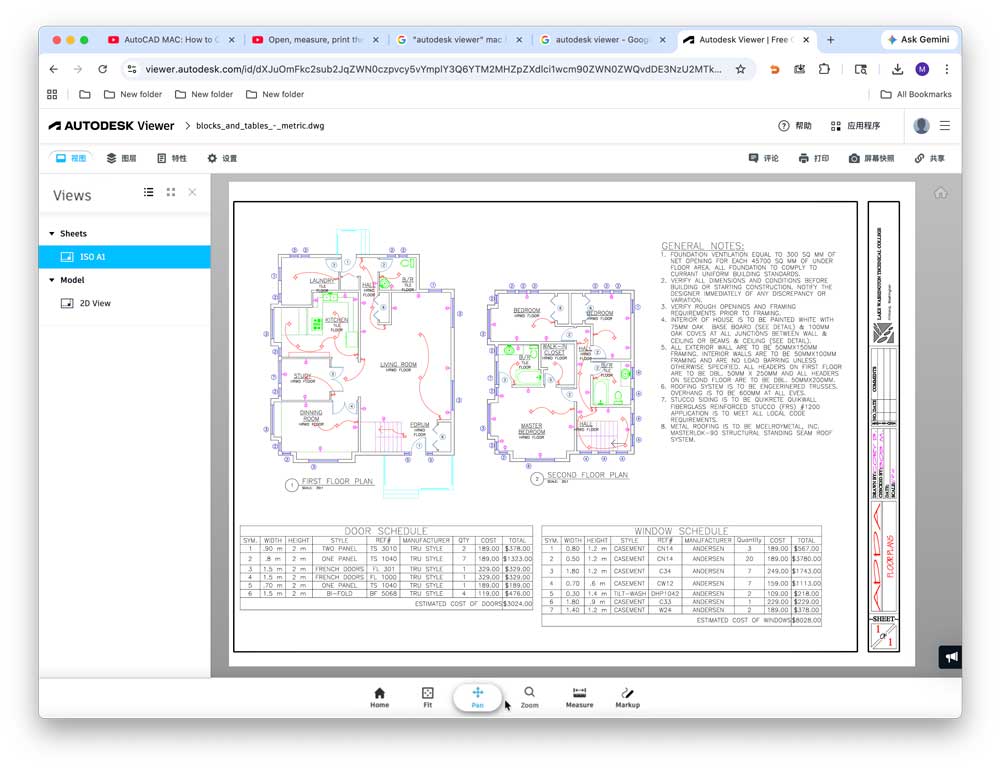
Pros:
- 100% free
- Accessible from any device with an internet connection.
- View over 80 different file formats, including DWG, DXF, STEP, RVT, and more
- Fully supports 3D DWG viewing
- No software installation
- Conveniently zoom in and out, pan across DWG file
- Support navigation, measurement, and basic markup.
- Support add annotations and comments.
- Support real-time collaboration
- Works on any Mac
Cons:
- Requires an Autodesk account
- Does not support editing, cannot modify the actual drawing elements within the DWG file.
- Slow performance on large DWG
- Requires an internet connection
- Need to consider data security and confidentiality when uploading DWG files.
Open-source software for opening and editing DWG files on Mac
Tip: For open-source tools, if a DWG doesn't open well, convert it to DXF using a free online converter.
QCAD Community edition - Open-source software that has almost all the options of Autodesk Viewer
QCAD Community edition is an open-source application that makes opening DWG files very easy. In our test it has better DWG support than LibreCAD and it also has almost all the tools you need to edit a DWG file. For small DWG files it loads very quickly, but for files larger than 30MB it takes a long to open.
QCAD also comes with a profession version. The professional version of QCAD adds a few additional resources and tools which are not open source.
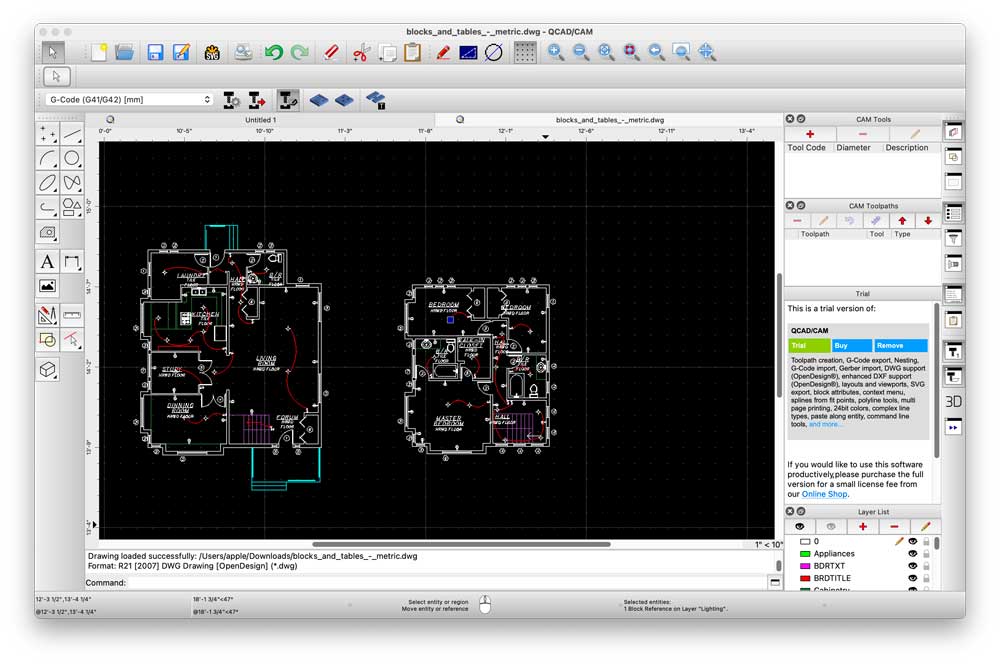
Pros:
- Opensource software for opening and editing DWG files.
- Create technical drawings and designs.
- Support Windows, macOS, and Linux.
- True 3D systems allow users to rotate and view objects from any angle.
- Support DWG and DXF formats.
- Support nesting, printing, and object snapping.
- Features a wide variety of measurement tools.
- Compes with a parts libraries with more than 4,800 CAD parts.
- Convert DWG to DXF.
Cons:
- Slow performance on large DWG.
- Old-styled interface.
LibreCAD - Open-source, lightweight 2D DWG Viewer
Best for: Free open-source options with limited DWG support
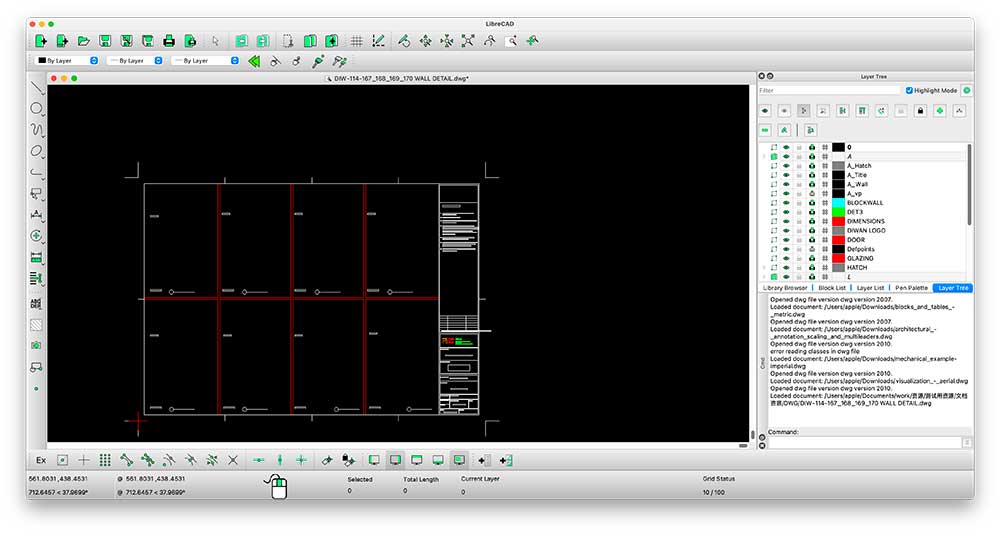
LibreCAD is a free, open source 2D CAD software for Windows, Mac and Linux. Most of the interface and handle concepts are analogous to AutoCAD, so it is very easily to get started for users with experience of CAD.
LibreCAD uses the AutoCAD’s .dxf file format internally to import and save files. When opening an existing AutoCAD file with LibreCAD you should have the correct file format selected in order to have access to the file, by default it can only open DXF files with DWG options are grayed out, you need to switch the opening format to DWG in the open dialog box. and for exporting it allows export to many other file formats like png, jpeg, and pdf.
Pros:
- Free and open-source.
- Works on macOS, Windows, and Linux.
- Light-weight 2D CAD software.
- Supports isometric 3D drawings making.
- Layers properties settings like color, line type, visibility etc.
- Dimensioning and annotation tool supporting.
- Support switching between the metric and imperial units.
- Provides editing tools like trim, extend, mirror, scale, and rotate etc.
- Export drawings to PDF, SVG, and DXF.
- Available in more than 30 languages.
Cons:
- Limited DWG Support (For newer version DWG you may need to convert it to DXF first).
- Doesn’t support complex 3D DWG.
- Takes time to get used to the toolbar.
- Only save in DXF format.
- Crashes often on large DWG files.
- Refuse to print some new DWG files.
- The Selection becomes active all the time even without a mouse click, which cause mis-select.
How to open a DWG file on Mac
Option 1: Open DWG on Mac using free web viewer (no installation)
- Open Safari / Chrome on your Mac.
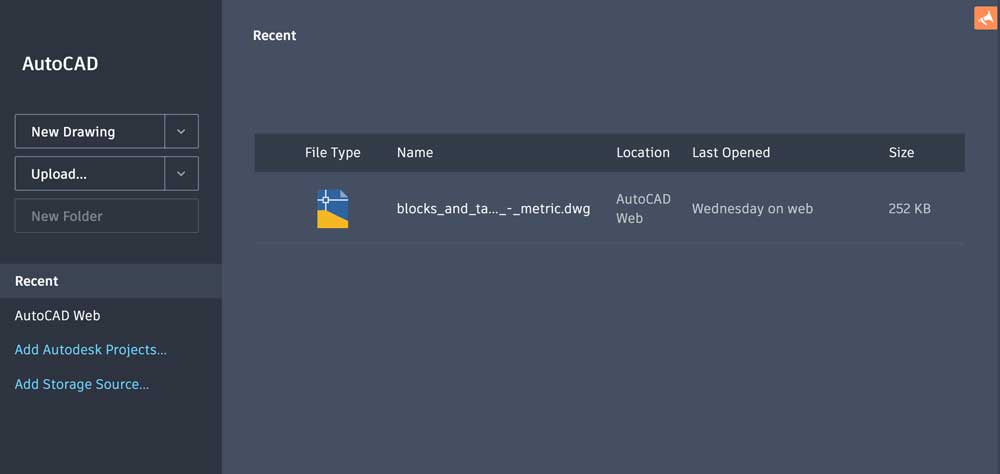
- Go to AutoCAD Web App or Autodesk Viewer.
- Sign in / sign up with a free Autodesk account.
![]()
- Upload your DWG file
- View, zoom, measure, or print directly to PDF.
Option 2: Use a free Mac app (when you need offline viewing)
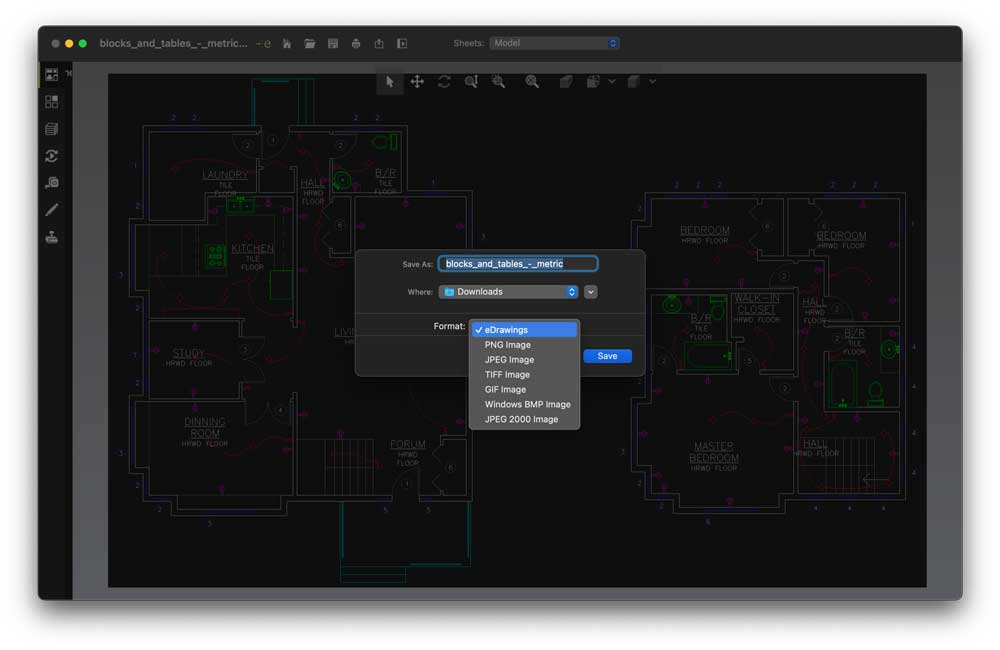
- Open App Store - Search “eDrawings” or “Enolsoft DXF Viewer” - Install the app.
- Open the app and drag or drop the DWG file to the main interface.
- View or measure the DWG file, use export or print function to save the DWG files as PDF or images.
Option 3: Use Open-source DWG Viewer
- Download and install QCAD or LibreCAD
- Open the app and click File >> Open to select the DWG file.
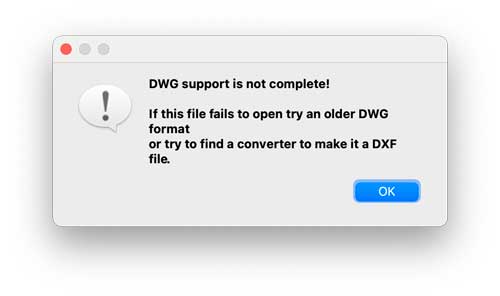
- If it fails to open, try Convert the DWG to **DXF** or to an older version DWG.
![]()
- Edit or viewing the DWG file, click export to save it in the format you need.
Conclusion
To sum up, if you don’t want to install any software, online DWG viewers like Autodesk Viewer and AutoCAD Web App are worth a shot. As for those who are looking for free offline options Mac app store apps like eDrawings, Enolsoft DXF Viewer or open-source software like QCAD or LibreCAD are recommended.
Which method worked best for you? Drop a comment below or share your experience with other Mac users facing the same issue.

Bryan is the Chief Writer at Enolsoft for 15 years. He doesn’t just document software, he is more like a power user that bridges the gap between complex file management systems and the real people who use them, showing users the easiest way to turn digital chaos into streamlined efficiency.
Comments (0)
Leave a Reply